AI in SAP Datasphere: natural-language SQL and Pipeline Analyzer
What the September 2026 SAP Business AI features bring to Datasphere: SQL views from a prompt and AI summaries of pipeline errors and impacts.
Table of contents
The September 2026 releases added two generative AI features to SAP Datasphere (inside SAP Business Data Cloud too) that a BI team can actually use every day: generating or changing SQL views from a prompt, and asking AI for a business summary and an errors-and-impacts summary in the Data Pipeline Analyzer. These are not keynote demos. They are in the product and documented. You still have to switch them on and, above all, agree on how your team uses them.
What is new
According to the release highlights page that the BDC product manager maintains on SAP Community, September 2026 brought:
- AI-generated SQL in the SQL view editor: you describe what you want in plain language and Datasphere proposes the code, for a new view or to change an existing one.
- Two new capabilities in the Data Pipeline Analyzer: an AI-generated business summary (what the pipeline does, key transformations, sources and targets) and an errors-and-impacts summary for a failed run, including the downstream data and processes that are affected.
Both run on SAP Business AI and sit next to AI features that were already on the same configuration screen: catalog metadata enrichment, natural-language search and semantic enrichment of entities and columns.
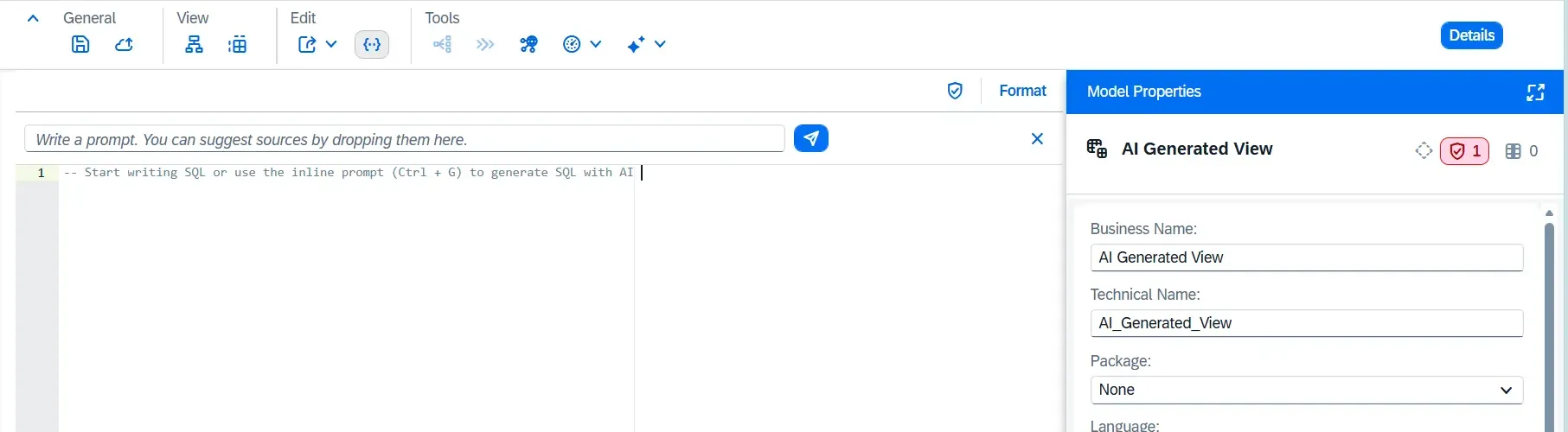
SQL from a prompt: how it works
The documented flow is simple:
- In the SQL view editor, Generate → Generate SQL (or
Ctrl + G) opens the prompt panel. - Drag the sources the AI should use from the Source Browser into the panel.
- Optionally, select a piece of SQL for the AI to focus on.
- Write the prompt and send it. Datasphere generates the code.
- Review it: send another prompt, edit by hand, run Preview Data, or click Reject to roll back the proposal.
- Save or deploy as with any other view.
Three limits worth knowing before you demo it to the team:
- It only works with SQL (Standard Query). SQLScript table functions are not supported.
- You can use views with input parameters as sources and ask for new parameters, but the AI only writes them into the code. You have to create them in the side panel before the view validates.
- What you get is a proposal. Nothing is stored until you save.
Here is how I would use it. The value comes from being precise about grain and business rules:
Use VW_SALES_FACT and VW_CUSTOMER_DIM. Return net sales per customer and monthfor 2026. Join on CUSTOMER_ID (left join, I want sales without a customer).Exclude documents with STATUS = 'CANCELLED'. Group by CUSTOMER_ID,CUSTOMER_NAME and month (YYYYMM).And this is what I would always check in the result, whether it comes from AI or from a colleague:
SELECT f."CUSTOMER_ID", c."CUSTOMER_NAME", TO_VARCHAR(f."POSTING_DATE", 'YYYYMM') AS "CALMONTH", SUM(f."NET_AMOUNT") AS "NET_AMOUNT"FROM "VW_SALES_FACT" AS fLEFT JOIN "VW_CUSTOMER_DIM" AS c -- left or inner? did I ask for this? ON c."CUSTOMER_ID" = f."CUSTOMER_ID" -- is the dimension unique per key?WHERE f."STATUS" <> 'CANCELLED' -- what about NULL in STATUS? AND f."POSTING_DATE" BETWEEN '2026-01-01' AND '2026-12-31'GROUP BY f."CUSTOMER_ID", c."CUSTOMER_NAME", TO_VARCHAR(f."POSTING_DATE", 'YYYYMM');The comments are the judgement the AI will not give you: duplicates from a non-unique dimension, filters that silently drop NULL values, and hard-coded years. The SQL is valid; the question is whether it is your business rule.
Data Pipeline Analyzer: business and error summaries
The Data Pipeline Analyzer already showed, for a local table, a view or an Analytic Model, the lineage with the status of each node, so you could trace an error back to its source. You open it from the Data Builder editors or from the details of a table or view in the Data Integration Monitor. The new part sits behind the Details button, with two tabs:
| Tab | What the AI generates | Is it stored? |
|---|---|---|
| Description | Business summary: purpose, transformations, sources and targets | Yes, and you can edit it or write it yourself |
| Status | Errors and Impacts Summary: errors and blocked data movements | No: read-only, regenerated every time |
Oddly enough, the first one is my favourite. Documenting pipelines is the job nobody does. Having the AI draft a summary that the modeler corrects and saves is a cheap way to get living documentation next to the object. The second one helps in support: when an Analytic Model turns red at 7:00, knowing in 30 seconds which source failed and what is blocked downstream saves a lot of back and forth.
How to switch it on
An administrator does this (a global role with Data Warehouse General and System Information, such as DW Administrator):
- Check that the tenant is on a supported landscape (Note 3437766). These two features don’t need AI Units, even though the activation help page lists them as a general prerequisite: the SAP Business AI catalog classifies them as Base. The ones that do consume AI Units are the Premium features in the same menu (natural language search, catalog content generation and semantic generation). If you see the AI tab but the features do not respond, check Note 3522010.
- In System → Configuration → AI Services, tick the features you want under AI Features: AI-Enhanced SQL View Generation and AI-Enhanced Data Pipeline Analyzer Summary are the ones covered here. Save.
- Grant the Data Warehouse AI Consumption global privilege (for example through the DW AI Consumer role) only to the people who should use them. Space roles (DW Modeler, DW Integrator) are still needed.
Not consuming AI Units doesn’t mean they show up on their own. Without this step, the SQL editor shows neither the prompt bar nor the shortcut: I checked it on a trial tenant with no access to system configuration.
My take as a consultant
The good part: these features are narrow and live where the team already works. They do not change your architecture or require a project.
What I would watch:
- Cost: both features in this post are Base and don’t consume AI Units. The risk sits next to them: the same AI Services screen switches on the Premium features, which do. Enable only what you will use and, for Premium features, run the AI Estimator in the Discovery Center first.
- Code governance: generated SQL must pass the same review as hand-written SQL (naming, performance, transports). I would enable it in development first.
- Data and metadata: ask what is sent to the model (metadata only, or preview data too?) and write it down for your security officer.
- Training: a vague prompt produces plausible, wrong SQL. Teach people to write prompts with explicit grain, keys and filters.
My recommendation
There is no cost barrier: both features are included in the subscription. Enable them in the development tenant and run a two-week trial with two or three modelers. Measure two things: time to a validated SQL view, and the number of pipelines with a description. The value of the errors summary in support is easy to defend; the value of SQL generation depends a lot on how mature the team is.
Sources
- SAP Business Data Cloud – release update highlights (SAP Community, updated 1 Oct 2026)
- SAP Datasphere, SQL generation (SAP Business AI Catalog, Discovery Center)
- SAP Business Data Cloud, data pipeline summaries (SAP Business AI Catalog, Discovery Center)
- Enable SAP Business AI for SAP Datasphere (SAP Help Portal)
- Generate SQL Code with AI (SAP Help Portal)
- Generate Summaries of the Data Pipeline Analyzer With AI (SAP Help Portal)
- Data Pipeline Analyzer (SAP Help Portal)