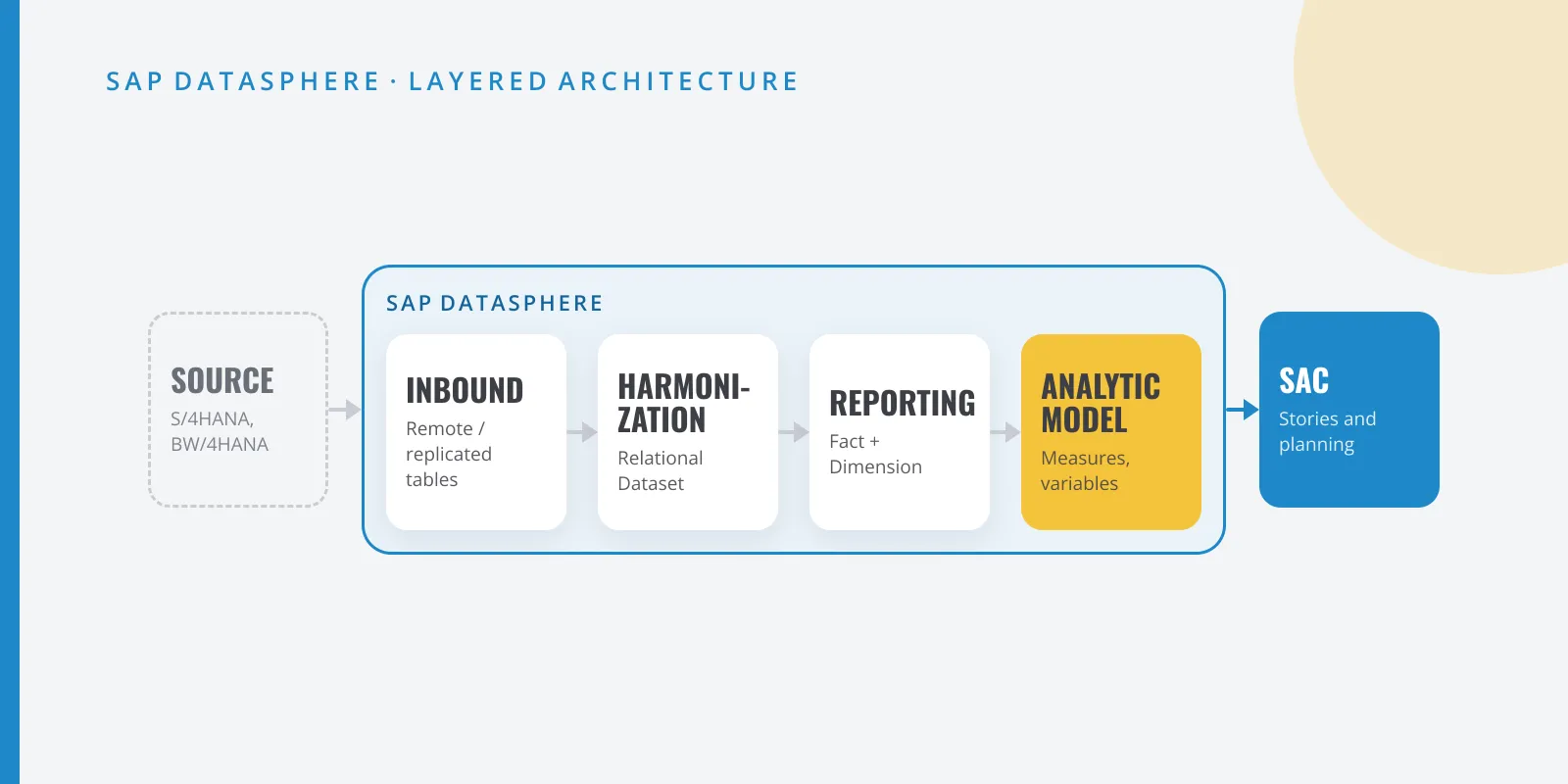
Hands-on: stacked Analytic Models with custom variables in Datasphere
Step by step: reuse an Analytic Model as the source of another in SAP Datasphere, choose Inherit, Map To or Set Value, rename variables and validate.
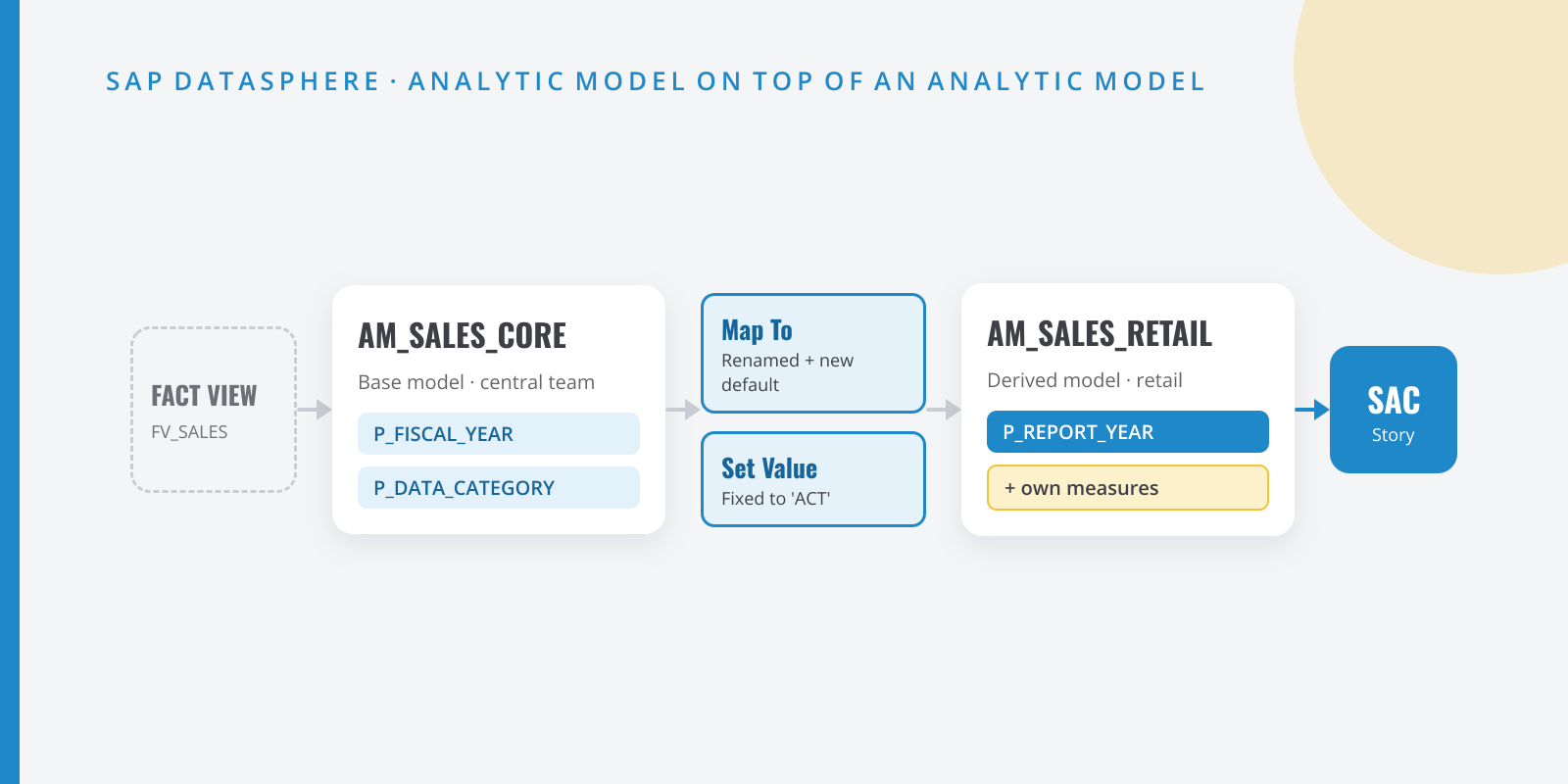
Table of contents
Almost every SAP Datasphere project hits the same wall. The central team ships a solid sales Analytic Model and, a few weeks later, every business area asks for “their own”: a couple of extra measures, and none of the prompts they don’t understand. If each area copies the model, six months later you have five versions of the same logic. In this hands-on guide we build the alternative: a derived Analytic Model that uses the central one as its source and customises its variables, a capability SAP rounded off in May 2026.
What we are going to build
By the end you will have:
- A base Analytic Model,
AM_SALES_CORE, on top of the Fact viewFV_SALES, with two variables:P_FISCAL_YEARandP_DATA_CATEGORY(actual, budget…). - A derived Analytic Model,
AM_SALES_RETAIL, that usesAM_SALES_COREas its source and:- maps the fiscal year to its own variable,
P_REPORT_YEAR, with a different business name and default value; - fixes the data category to
ACT(actuals), so retail users never see that prompt; - adds its own measures: retail channel revenue and its share of the total.
- maps the fiscal year to its own variable,
- A validation that proves both models return the same figures for the same input values.
So you can reproduce it exactly, the guide starts from a sample CSV with fictitious data: T_SALES_ITEMS.csv (1,890 rows, 90 KB). It covers the full 2025 fiscal year and 2026 up to period 9, three company codes (ES01, PT01, FR01), three channels (RETAIL, ONLINE, WHOLESALE), five products and the categories ACT (actuals) and BUD (budget), all in euros.
The cover image sums up the setup. All technical names (FV_SALES, AM_SALES_CORE, CHANNEL…) are examples: follow your own naming convention.
Why it is worth it
If you come from BW, think of a query that reuses a global structure: the logic lives in one place and each consumer only adds what is specific to them. Before this change, the base model’s variables came across as they were when you stacked models. You either inherited them with their name and default, or resolved them with a fixed value. If the retail team wanted the fiscal year labelled differently, or starting on a different year, you ended up copying the whole model.
Now you get three options for each variable in the source model, and choosing well is half the job:
| Option | What happens | When I use it |
|---|---|---|
| Inherit | The base variable’s properties are used. It cannot be changed in the derived model | Company-wide variables that must behave the same in every model |
| Set Value | You resolve the variable with a value. Users of the derived model no longer see it | Filters that define the model itself (actuals only, one company code) |
| Map To | The variable is mapped to a variable in the new model, which you can rename and tune | Variables the area needs with its own name, default, or in its own measures |
Step by step
Step:Import the sample CSV as a local table
Download T_SALES_ITEMS.csv. In the Data Builder, choose Import → Import CSV File, pick the file with Select Source File and click Upload. The import editor opens with a preview of the data.
The editor only works with generic types (String, Integer, Number, Date…). Select a column and open the Details tab to see its type. There is one thing to change here: Datasphere infers
FISCAL_YEARas Integer, so switch it to String. The fiscal year is a string because theIP_FISCAL_YEARinput parameter is one too. While you are there, check thatNET_REVENUEshows as Number. Click Deploy and keepT_SALES_ITEMSas both business and technical name.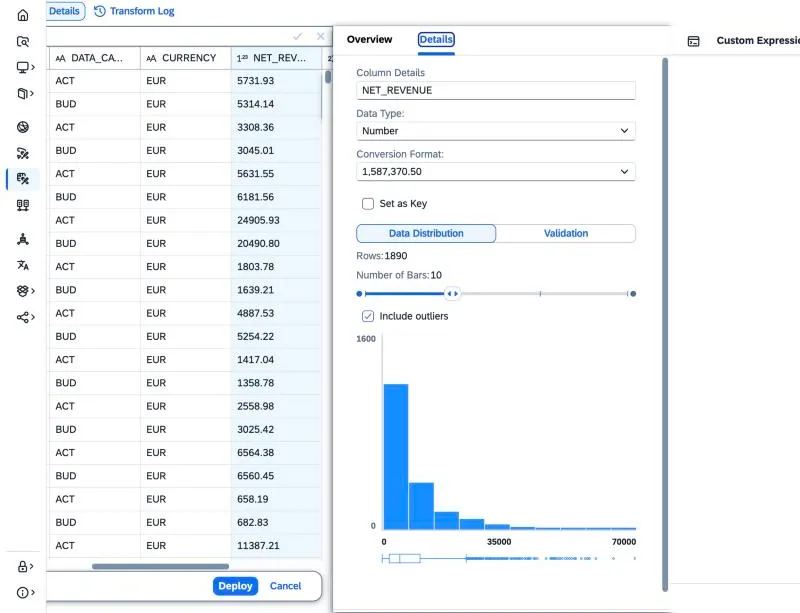
Import editor: data preview and, in the Details tab, the NET_REVENUE column as Number. You do not choose precision during the import. The table is created with very generous types:
String(5000),Integer64andDecimal(38,19). To tighten them, open the table, go to the Columns tab, click the column’s data type and deploy again. This is how I would set them:Column Type after import Adjusted type FISCAL_YEARString(5000) String(4) FISCAL_PERIOD,QUANTITYInteger64 Integer64 COMPANY_CODE,CHANNEL,PRODUCT_ID,DATA_CATEGORY,CURRENCYString(5000) String(5000) NET_REVENUEDecimal(38,19) Decimal(15,2) What matters is that the amount ends up as an exact decimal and not as a floating-point type: SAP warns that
hana.REALvalues get converted (1.1 becomes 1.100000023841858), and then nothing reconciles to the cent.If you prefer your own data, skip this step and adapt the column names in the next one.
Step:Prepare the Fact view with input parameters
Create a SQL view
FV_SALESin the Data Builder with semantic usage Fact on top ofT_SALES_ITEMS. In the properties panel, open the Input Parameters section with the pencil icon and create two parameters:IP_FISCAL_YEAR(String, length 4) andIP_DATA_CATEGORY(String, length 3, default valueACT).FV_SALES.sql SELECT"FISCAL_YEAR","FISCAL_PERIOD","COMPANY_CODE","CHANNEL","PRODUCT_ID","DATA_CATEGORY","CURRENCY","NET_REVENUE","QUANTITY"FROM "T_SALES_ITEMS"WHERE "FISCAL_YEAR" = :IP_FISCAL_YEARAND "DATA_CATEGORY" = :IP_DATA_CATEGORYValidate the SQL so the columns show up. Then, in the ⋯ menu of
NET_REVENUEandQUANTITY, choose Change to Measure and deploy. Filtering by year and category inside the view, and not only in the model, is deliberate: the filter reaches the database as early as possible.Step:Create the base Analytic Model AM_SALES_CORE
In the Data Builder, choose New Analytic Model and drag
FV_SALESonto the canvas. A dialog opens with two checkboxes already ticked (add all attributes and all measures) and, because the view has input parameters, a table where you decide what to do with each of them: keep Map to → New Variable for both and click Add.Datasphere creates two standard variables named after the parameters. Open them from the Variables section of the properties panel and rename them to
P_FISCAL_YEARandP_DATA_CATEGORY(remember: in an Analytic Model, input parameters are called variables). The parameter’s default valueACTcarries over to the variable.The
NET_REVENUEandQUANTITYmeasures and the seven dimensions are already in the model. Save and deploy. This is the company-wide model: the central team owns it, and it is the one worth protecting.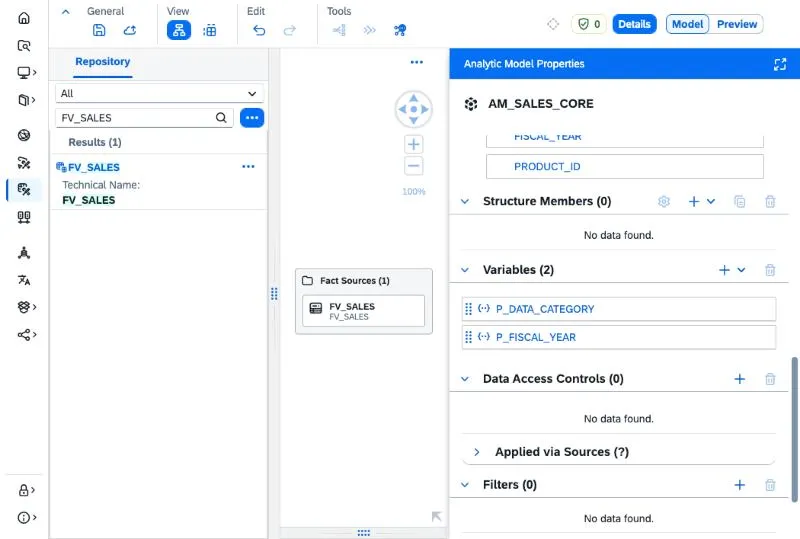
AM_SALES_CORE: the Fact view on the canvas (1) and the two renamed variables (2). Step:Create AM_SALES_RETAIL with the base model as source
Create another Analytic Model,
AM_SALES_RETAIL. The editor’s repository only lists objects that can be used as a source: facts and Analytic Models. DragAM_SALES_COREonto the canvas.Dropping it opens the Add “AM_SALES_CORE” In Your Model dialog. At the top you choose what to bring in: all attributes, all measures and any associated dimensions the source model has. At the bottom sits the variables table, with a note that the source model’s variables are inherited and an Action column that defaults to Inherit. For this guide, keep both checkboxes ticked. Anything you leave out can be added later: select the
AM_SALES_COREnode on the canvas and tick the measure or dimension in its panel.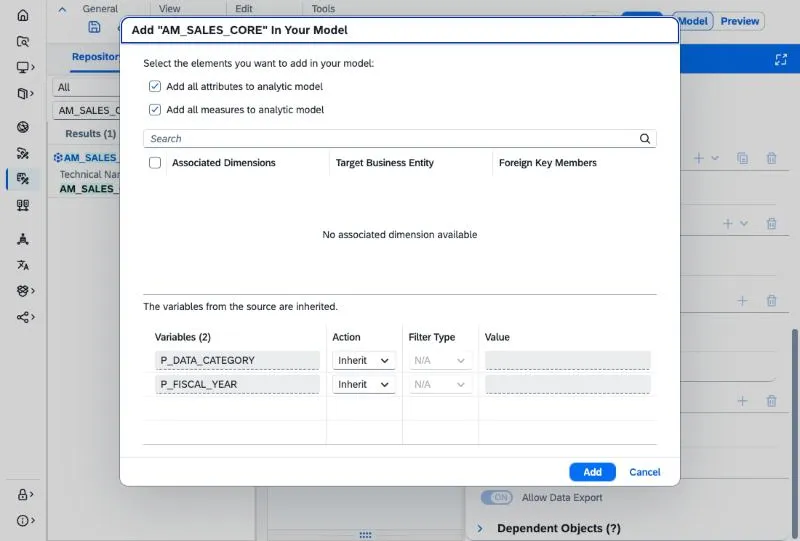
The dialog shown when you drop AM_SALES_CORE: which elements come across and, below, the action for each variable (Inherit by default). Do not click Add yet: you decide on the variables in this same dialog, in the next step.
In the model’s properties panel, Show Inherited Elements is on by default. Leave it on: you see at a glance what comes from the base model and what belongs to the derived one, which pays off as the model grows.
Step:Decide what to do with each variable
In the dialog’s Action column you choose Inherit, Set Value or Map to for each variable in the source model:
P_DATA_CATEGORY→ Set Value withACT. The retail model only shows actuals, so the prompt is pointless. The Value field comes pre-filled with the variable’s default value (ACT) and you can edit it.P_FISCAL_YEAR→ Map to → New Variable. Datasphere creates a variable with the same name in the derived model.
Click Add and save the model as
AM_SALES_RETAIL. Do it right away: if the editor reloads before the first save, the model is gone.Why not Inherit for the fiscal year? Because an inherited variable cannot be changed in the new model. Only mapped variables can. If the area needs nothing different, Inherit is the cleanest choice; here it does.
If you change your mind later, there is no need to drag the model again. Select the
AM_SALES_COREnode on the canvas and scroll down to Variables: you see how each one is resolved and, in its ⋯ menu, you can switch it to Set Value, Map to or Inherit.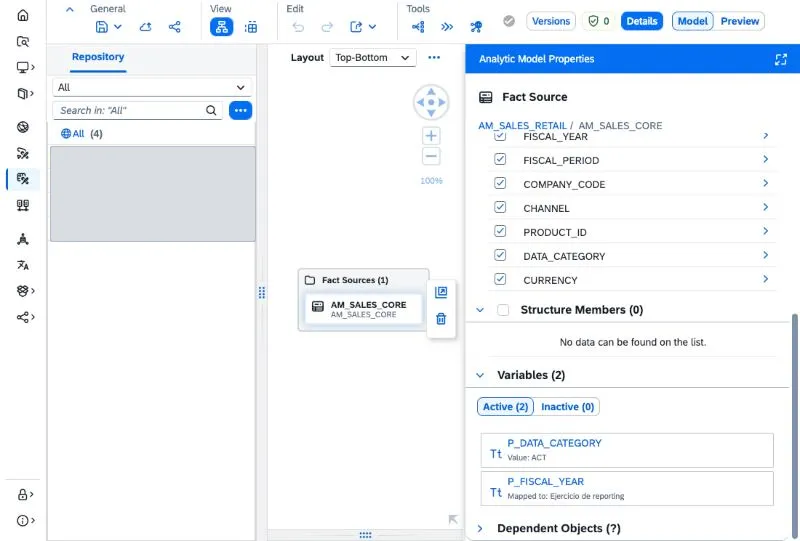
The source model's variables seen from the derived model: P_DATA_CATEGORY fixed to ACT and P_FISCAL_YEAR mapped to the model's own variable (1). The screenshot uses the Spanish business name, 'Ejercicio de reporting'. Step:Customise the mapped variable
In the model’s properties panel, open the mapped variable from the Variables section and adjust:
- Business name: “Reporting year”. This is what users see in the SAP Analytics Cloud prompt.
- Technical name:
P_REPORT_YEAR. Settle it now: once the model is saved, Datasphere warns that changing the technical name might affect existing stories or analytic models. - Default value: the year the area wants to start with (for example,
2026).
If the model has more than one variable, reorder them by drag and drop in the editor: that order is used in the preview and in the SAC prompt.
Step:Add the area's own measures
In the model’s properties panel, open the + menu of the Measures section:
- Restricted Measure
NET_REVENUE_RETAIL: source measureNET_REVENUE, expressionCHANNEL = 'RETAIL'. - Calculated Measure
RETAIL_SHARE:NET_REVENUE_RETAIL / NET_REVENUE. Under Formatting, set Scale to Percent and Decimal Places to 2.
These measures live only in the derived model. The central team does not need to know they exist, and the retail team cannot break
NET_REVENUEeven if it tried.- Restricted Measure
Step:Deploy and connect SAC
Save and deploy
AM_SALES_RETAIL. Before you leave Datasphere, click Preview: the Set Variables dialog should only ask for “Reporting year”, with the default you defined.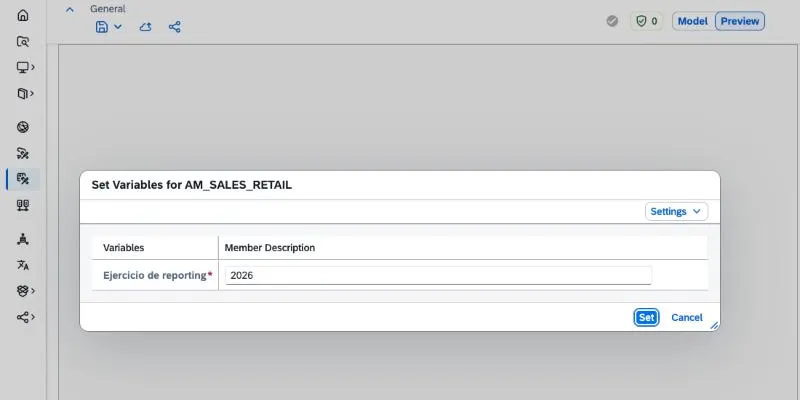
Preview of AM_SALES_RETAIL: a single variable, with its business name (in Spanish in this screenshot) and the default value 2026. Then, in SAP Analytics Cloud, build a story on the model: the prompt should show that same variable and nothing else.
Validation
Do not sign off the model until you have checked three things:
-
Same figures for the same inputs. Open the preview of
AM_SALES_COREwithP_FISCAL_YEAR = 2026andP_DATA_CATEGORY = ACT, and the preview ofAM_SALES_RETAILwithP_REPORT_YEAR = 2026. TotalNET_REVENUEby company code must match to the cent. If it does not, check the value you fixed with Set Value. With the sample CSV, this is what you should see (2026, actuals):Company code NET_REVENUENET_REVENUE_RETAILRETAIL_SHAREES011,460,407.23 486,708.42 33.33% FR011,240,047.24 375,044.99 30.24% PT01670,851.45 208,915.85 31.14% Total 3,371,305.92 1,070,669.26 31.76% -
The restricted measure reconciles with SQL. Create a test SQL view and compare
NET_REVENUE_RETAILwith what the Fact view returns when its parameters are resolved with values:check_retail.sql SELECT "COMPANY_CODE", SUM("NET_REVENUE") AS "NET_REVENUE_RETAIL"FROM "FV_SALES"(IP_FISCAL_YEAR: '2026', IP_DATA_CATEGORY: 'ACT')WHERE "CHANNEL" = 'RETAIL'GROUP BY "COMPANY_CODE" -
The prompt is what you expect. In the preview and in SAC, only the mapped variable should appear, with its new name. If the data category shows up too, you left it on Inherit or Map To.
One more test, for the day someone changes the base model: change something in AM_SALES_CORE (for example, remove a measure the derived model uses) and save. SAP warns that the change may affect other models, and AM_SALES_RETAIL moves to Changes to Deploy or Design Time Error, depending on the change. Better to find out in development than in the month-end meeting.
Common mistakes
| Symptom | Cause | Fix |
|---|---|---|
| I cannot rename the variable or change its default | You left it on Inherit: inherited variables cannot be changed | Switch to Map To and customise the new variable |
| SAC users still see the data category prompt | P_DATA_CATEGORY is not resolved with Set Value |
Fix it to ACT in the derived model and redeploy |
| A base model measure is missing in the derived model | It is an auxiliary measure: those are not copied when stacking models | Make it visible in the base model if you really need it, or rebuild it downstream |
| The derived model shows Design Time Error | Someone changed measures, variables or attributes in the base model | Read the warning when deploying the base, adjust the derived model, deploy both |
| A story breaks after “tidying up” names | A variable or measure technical name was changed after saving | Settle technical names before the first deployment and leave them alone |
Next step
If several teams consume sales data, take stock: how many Analytic Models are copies of another one plus two measures? Those are obvious candidates for derived models. I would start with one, with the central team owning the base model and a written rule on which variables are inherited, which are fixed and which are mapped. And before touching the base model in production, always check who depends on it.
Sources
- SAP Business Data Cloud – release update highlights (SAP Community, Klaus-Peter Sauer)
- Add a Fact to an Analytic Model (SAP Help Portal)
- Changing the underlying Analytic Model (SAP Help Portal)
- Creating an Analytic Model (SAP Help Portal)
- Create a Variable in an Analytic Model (SAP Help Portal)
- Create a Standard Variable (SAP Help Portal)
- Create a Restricted Measure (SAP Help Portal)
- Creating a Local Table from a CSV File (SAP Help Portal)
- Create an Input Parameter in a Graphical View (SAP Help Portal)
- Process Source Input Parameters in an SQL View (SAP Help Portal)