Hands-on: multilingual texts with fallback in SAP Datasphere
Step by step: translate attributes in SAP Datasphere with a text entity, a fallback text, the new translation validation rules and a per-language test.
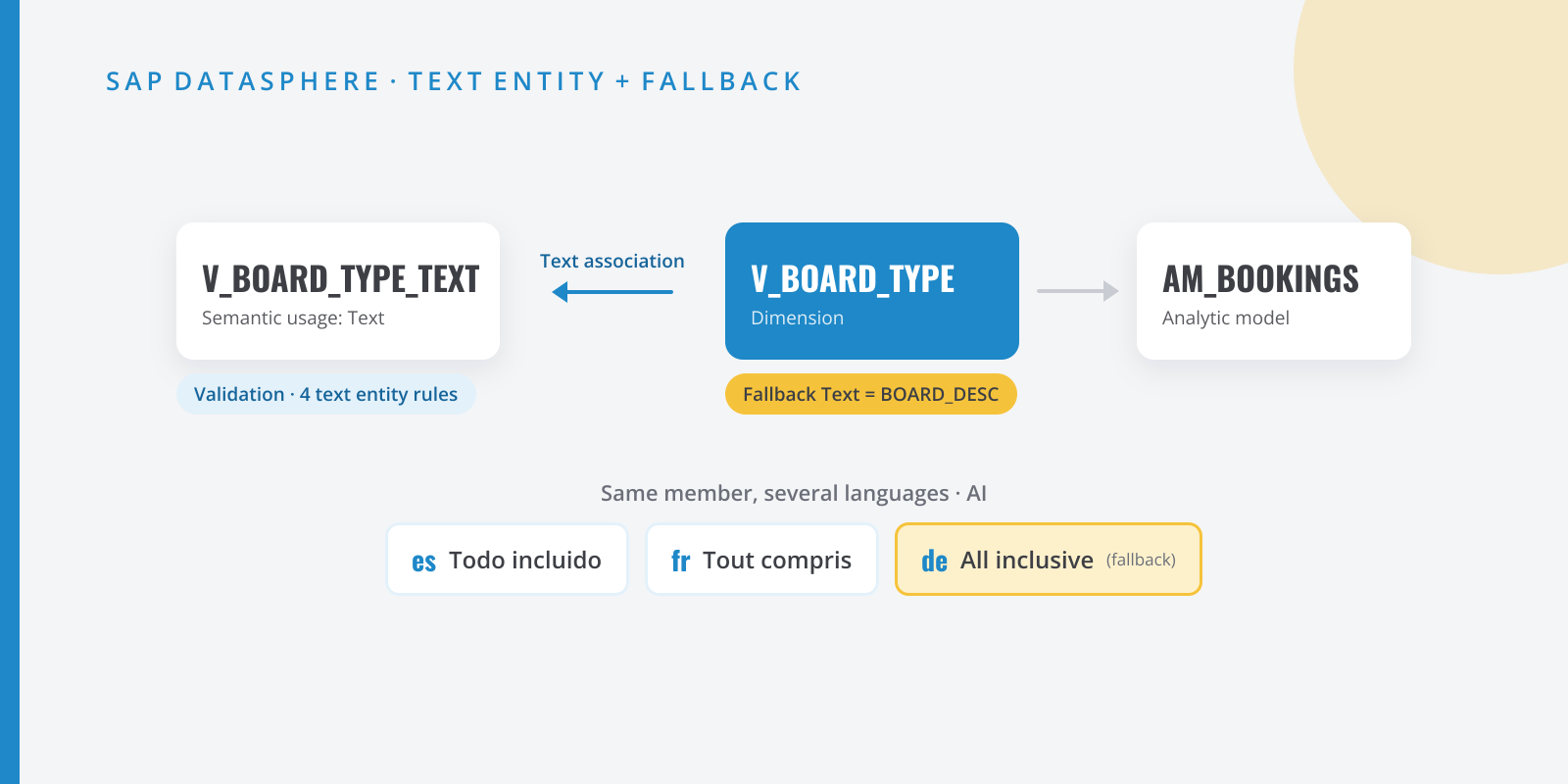
Table of contents
Any group with international business reads its reports in more than one language. In SAP Datasphere the answer has been a text entity for years, but it had two weaknesses that hurt in real projects: if a member had no translation in the user’s language, the attribute came back empty, and there was no built-in way to see what was still untranslated. In September 2026 SAP shipped the two missing pieces: a fallback text on the text association and validation rules specific to text entities. In this hands-on guide I build the full model and test it language by language.
What we are going to build
I’ll use a classic example from a hotel group: the board basis (room only, bed and breakfast, half board…), which appears on every booking and which each market wants to see in its own language. By the end you will have:
- A text entity
V_BOARD_TYPE_TEXTwith Spanish, English, German and French translations, validated with the new text entity rules. - A dimension
V_BOARD_TYPEwith a text association to that text entity and the corporate description as Fallback Text. - A fact view
V_BOOKINGSand an analytic modelAM_BOOKINGSon top of it. - A per-language test using the editor’s own OData request (
sap-language) and, if you have SAC, the data access language in the user profile.
The cover image sums up the architecture. All technical names (T_BOARD_TYPE, V_BOARD_TYPE, AM_BOOKINGS…) are examples: use your own naming convention.
Why it is worth it
I have seen the same failure in more than one project: the model is tested in English and Spanish and, weeks later, a user from another market opens the story in their language and half of the board types are blank. The fallback treats the symptom: “All inclusive” beats an empty cell. Validation treats the cause: it tells you what is missing before the user finds out.
Step by step
Step:Upload the sample data
You need three small CSV files with fictitious data. You can download them as they are: board_type.csv, board_type_text.csv and bookings.csv.
The master data holds the corporate description (in English, which will be our fallback language):
board_type.csv BOARD_ID,BOARD_DESCRO,Room onlyBB,Bed and breakfastHB,Half boardFB,Full boardAI,All inclusiveThe text table has one record per board type and language. I left two deliberate errors: German is missing for
AI, andHBhas its Spanish text twice with different casing.board_type_text.csv BOARD_ID,LANGU,BOARD_TEXTRO,es,Solo alojamientoBB,es,Alojamiento y desayunoHB,es,Media pensiónHB,ES,Media pensionFB,es,Pensión completaAI,es,Todo incluidoRO,en,Room onlyBB,en,Bed and breakfastHB,en,Half boardFB,en,Full boardAI,en,All inclusiveRO,de,Nur ÜbernachtungBB,de,Übernachtung mit FrühstückHB,de,HalbpensionFB,de,VollpensionRO,fr,Logement seulBB,fr,Chambre et petit-déjeunerHB,fr,Demi-pensionFB,fr,Pension complèteAI,fr,Tout comprisAnd
bookings.csv, with 20 bookings (BOOKING_ID,BOOKING_DATE,BOARD_IDandROOM_NIGHTS) adding up to 82 nights: 6 forRO, 13 forBB, 14 forHB, 13 forFBand 36 forAI.In the space’s Data Builder, use Import > Import CSV File to create
T_BOARD_TYPE,T_BOARD_TYPE_TEXTandT_BOOKINGS. In the import editor, select each column and open the Details tab: that is where you change the data type and set the key. For the text table:LANGUmust be String(2). That matches identifiers such asesorde, and one of the rules we will run later checks it.- Tick Set as Key on
BOARD_IDand onLANGU. In the master data table, the key isBOARD_ID.
Do it before you deploy. If you create the table without a key and add it later, Datasphere won’t let you: a table that already holds data doesn’t accept primary key changes. In that case, create the table empty with its keys and load it with Upload Data from CSV File.
With the key in place, a repeated
BOARD_IDwith the same language can’t get into the table. But note thatHB/esandHB/ESdo not clash: they are different strings. That is exactly the kind of error that only shows up later.Step:Create the text entity as a view
You could flag the local table itself as a text entity, but I prefer a view: data validation is only available for views, and a view lets me normalize the language code. Create an SQL View
V_BOARD_TYPE_TEXT:V_BOARD_TYPE_TEXT.sql SELECT"BOARD_ID",LOWER("LANGU") AS "LANGU","BOARD_TEXT"FROM "T_BOARD_TYPE_TEXT"In the properties panel:
Property Value Semantic Usage Text Key BOARD_IDandLANGUBOARD_IDIdentifier. Semantic type: None. Text / Association: BOARD_TEXTLANGUSemantic type Language BOARD_TEXTSemantic type Text The third row is not optional: if
BOARD_IDdoesn’t haveBOARD_TEXTas its text, the view warns that the text entity doesn’t have exactly one key attribute with a Text / Association.The
LOWERis there for a reason. SAP acceptsfr,FR,fr-FRorFas identifiers, but mixing formats inside one entity is asking for trouble. Normalizing in the view turns theHB/ESrow into a real duplicate, which validation does catch.If your source is S/4HANA or BW, the language usually comes as a single character (
S,E,D) typed asabap.lang. That is valid, just don’t mix it with two-letter identifiers.Save and deploy.

Text entity attributes: BOARD_ID + LANGU as key, LANGU as Language and BOARD_TEXT as the text of BOARD_ID. Step:Validate the translations
Click Data Validation Status in the view’s properties panel, then Validate. Since September there is a Text Entities category with four rules:
Rule What it checks Severity Language Identifier Length Identifiers match the data type length (1 → E; 2 →en; 3 or more →enoren-US)Error Language Identifier Data Type The type matches the values ( abap.langonly with one character; warns if the type is longer than needed)Warning or error Unique Language Identifiers One text per member and language. Case-insensitive, and treats -and_as equalError Completeness of Translations Everything is translated into every language in use Warning With our data you should get three rules with issues:
- Unique Key Values (Keys category) reports one invalid record: after
LOWER, the keyHB/esrepeats. - Unique Language Identifiers reports two invalid records: both Spanish rows for
HB. - Completeness of Translations warns that one record is missing:
AIinde.
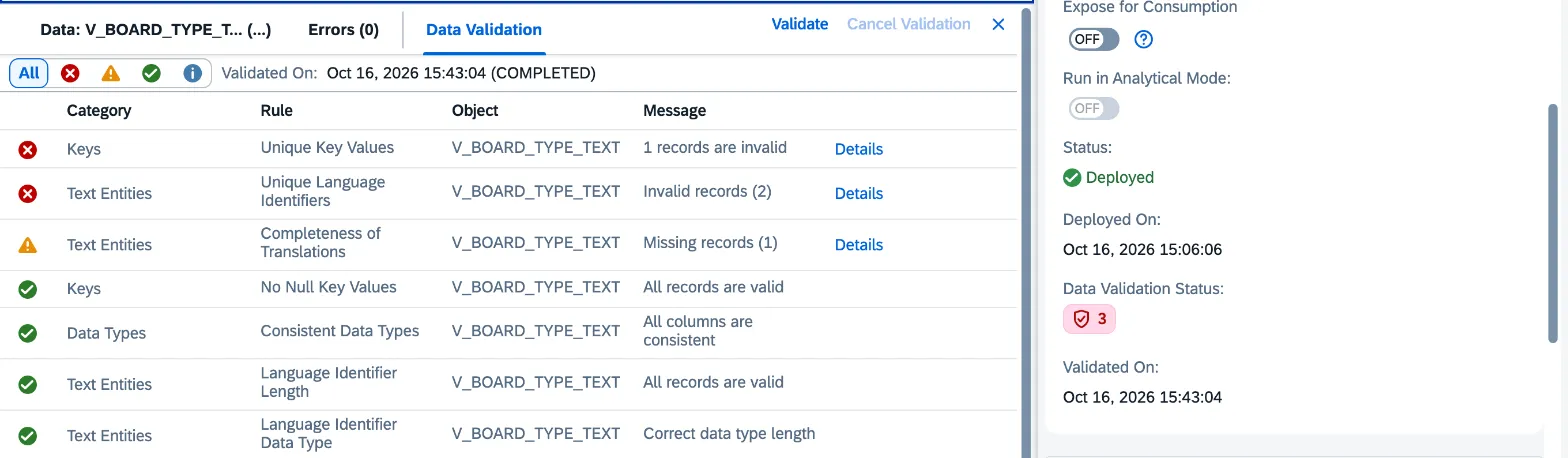
Validation result: two errors caused by the HB/ES duplicate and one warning for the missing translation. For each rule with issues, Details offers Copy SQL: paste it into a new SQL view and you get the exact list of failing records, ready to send to whoever owns the translations.
Fix the duplicate: delete the
HB,ESrow fromT_BOARD_TYPE_TEXT(in the table’s Data Editor or by reloading the CSV) and validate again. Only the Completeness of Translations warning should remain. Leave German forAIuntranslated: we will use it to test the fallback.Some rules don’t run when there is a data access control, input parameters or non-replicated sources, so validate before you add security.
- Unique Key Values (Keys category) reports one invalid record: after
Step:Create the dimension with its fallback text
Create the view
V_BOARD_TYPEon top ofT_BOARD_TYPE. Either a graphical view with a projection or an SQL view withSELECT "BOARD_ID", "BOARD_DESC" FROM "T_BOARD_TYPE"will do; I used the SQL one:- Semantic Usage: Dimension.
- Key:
BOARD_ID. BOARD_DESC: semantic type Text. This is what makes it eligible as a fallback.
In the Associations section, open the + menu and choose Text Association, with
V_BOARD_TYPE_TEXTas the target. In Mappings, the dimension’sBOARD_IDmust be mapped to the text entity’sBOARD_IDidentifier. Datasphere proposes it on its own because the columns share the same name.Now the new part: in the optional Fallback Text field, select
BOARD_DESC. From now on, when a user queries in a language with no translation for a member, they get the corporate description instead of nothing.Go back to the attribute list and check that the Text / Association of
BOARD_IDpoints to the text association. If you had setBOARD_DESCas the direct text ofBOARD_IDearlier, remove it: SAP only lets you use each Text column once, either as the text of another column or as the fallback of a text association.Deploy.
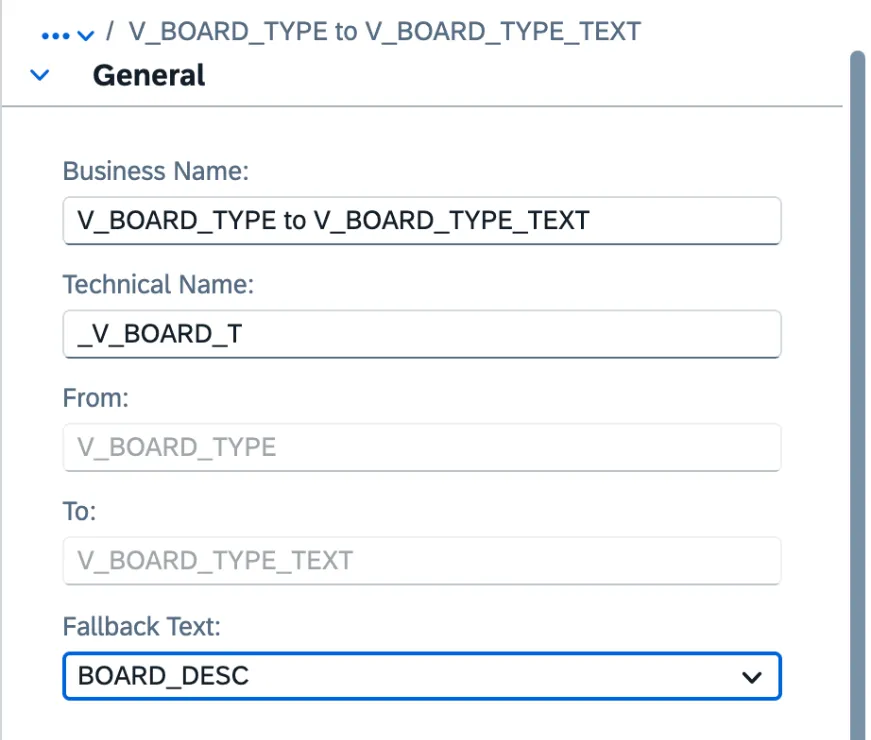
Text association from V_BOARD_TYPE to V_BOARD_TYPE_TEXT with BOARD_DESC as Fallback Text. A heads-up from my own test: when I reopened the view, the Fallback Text dropdown was empty, even though the fallback was saved and working. Don’t trust the dropdown: check it with the test in the validation section.
Step:Build the fact and the analytic model
Create
V_BOOKINGSonT_BOOKINGSwith Semantic Usage = Fact,ROOM_NIGHTSas a measure and an association fromBOARD_IDto theV_BOARD_TYPEdimension. Deploy and run validation here as well: the Referential Integrity rule tells you whether any booking uses a board type missing from the master data. An orphan member has no text in any language, and no fallback will fix that.Then create the analytic model
AM_BOOKINGSfromV_BOOKINGS, include the board type dimension when you add the source, and deploy. There is no language setting to configure in the model: the text travels through the association. In the Preview tab, withBOARD_IDin rows, you should see the 82 nights split by board type.If you change the dimension’s fallback after deploying the analytic model, the model goes to Changes to Deploy. Until you redeploy it, it keeps ignoring the fallback text.
Validation
The test that matters is seeing the same data in several languages. The quickest one doesn’t need SAC.
In the AM_BOOKINGS editor (Model view), click Generate OData Request in the Tools section. Keep Request = Data and add two rows under Query Parameters:
sap-language: the dropdown lists languages by their native name; pick Deutsch and the URL showsde.$select:BOARD_ID, the text column andROOM_NIGHTS, so you get one row per board type.
The text column is not returned unless you ask for it in $select, and Datasphere generates its name from the attribute: in my tenant it was BOARD_ID_T and, after redeploying the model, it became BOARD_ID_T2. Run a Preview without $select first to see the actual name. The URL looks like this:
https://<tenant>/api/v1/datasphere/consumption/analytical/<space>/AM_BOOKINGS/AM_BOOKINGS?sap-language=de&$select=BOARD_ID,BOARD_ID_T2,ROOM_NIGHTSWhat you should see:
| Language | RO | HB | AI |
|---|---|---|---|
es |
Solo alojamiento | Media pensión | Todo incluido |
de |
Nur Übernachtung | Halbpension | All inclusive (fallback) |
fr |
Logement seul | Demi-pension | Tout compris |
it |
Room only | Half board | All inclusive |
Look at the last two rows: in German only AI falls back; in Italian, which doesn’t exist in the text entity at all, everything does. Before this feature, those cells were empty. Totals don’t change with the language: 36 nights for AI, 82 overall.
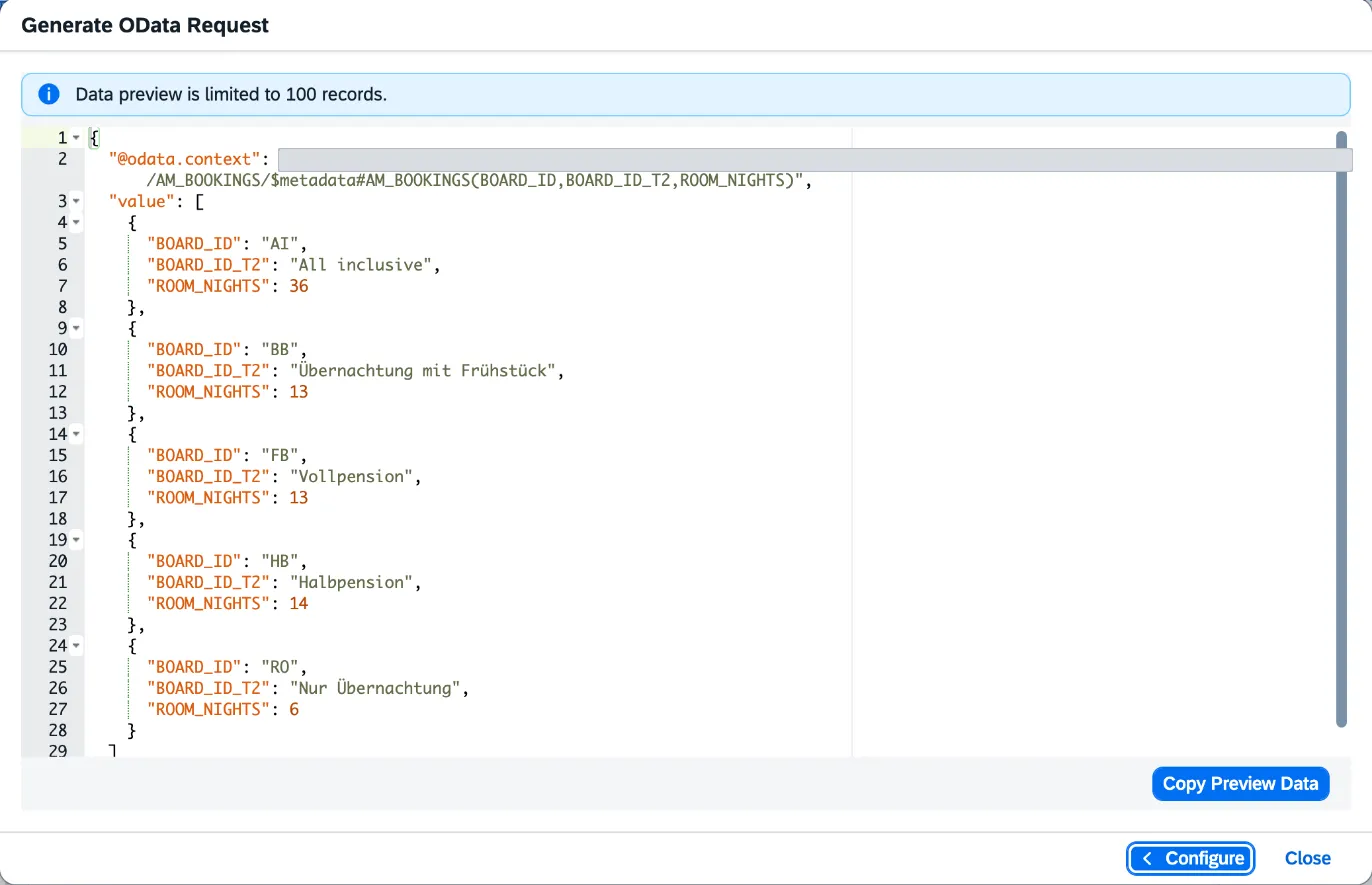
I also tested the wrong way round: with the analytic model deployed before the fallback was set, the same request returned AI empty in German and every board type empty in Italian. If you see empty cells with the fallback configured, redeploy the analytic model before opening a ticket.
In SAP Analytics Cloud, the equivalent test is to change the Data Access Language in your profile settings and open a story on AM_BOOKINGS.
For day-to-day operations I wouldn’t rely on manual validation alone. This control view gives the same picture as Completeness of Translations, and you can schedule it or show it on a data quality dashboard:
SELECT b."BOARD_ID", l."LANGU"FROM "T_BOARD_TYPE" AS bCROSS JOIN ( SELECT DISTINCT LOWER("LANGU") AS "LANGU" FROM "T_BOARD_TYPE_TEXT") AS lLEFT JOIN "T_BOARD_TYPE_TEXT" AS t ON t."BOARD_ID" = b."BOARD_ID" AND LOWER(t."LANGU") = l."LANGU"WHERE t."BOARD_ID" IS NULLWith the sample data it returns a single row: AI / de. Note that it compares against the master data, not the text entity itself, so it also catches members with no text at all. The standard rule only sees languages already present in the entity.
Common mistakes
| Symptom | Cause | Fix |
|---|---|---|
| The Fallback Text field offers no column | The dimension’s description column doesn’t have semantic type Text, or it is already used as another attribute’s text | Set semantic type Text and remove it from any other column’s Text / Association |
| Setting the key on the text table fails with Cannot convert primary key column | The table already holds data and doesn’t accept primary key changes | Tick Set as Key in the import editor, or create the table empty with its key and load it with Upload Data from CSV File |
| Text entity warning: it doesn’t have exactly one key attribute with a Text / Association | BOARD_ID has no text assigned |
Set BOARD_TEXT as the Text / Association of BOARD_ID |
| Empty cells in an untranslated language, with the fallback configured | The analytic model was deployed before the fallback was set (it shows Changes to Deploy) | Redeploy the analytic model |
| The OData request fails with Property ‘BOARD_ID_T’ does not exist | The text column name changes when the model is redeployed | Check the real name with a Preview without $select or in $metadata |
| No validation button on the text entity | The text entity is a local table: data validation only exists for views | Create a view on top with Semantic Usage = Text and validate that |
| Some rules are missing from the validation | The view or its sources have a data access control, input parameters or non-replicated remote sources | Validate a view without DAC or parameters, or replicate the source |
| Unique Language Identifiers errors on data that “looks” different | Same language with different casing (es/ES) or with - vs _ (en-US/en_US) |
Normalize the identifier in the view or fix the source |
| Language Identifier Data Type warning | Language column longer than needed (e.g. String(5) holding en) |
Shrink it to String(2): SAP notes this improves performance |
| Column names in SAC are still in one language | Text entities translate data, not metadata | Use the space’s Translation tool for business and column names |
Wrap-up
My recommendation for any model consumed in more than one language: always set a fallback on text associations, using the corporate description, and make text entity validation a fixed step before every transport. The fallback prevents empty cells in production; validation stops the fallback from becoming an excuse not to translate.
Also think about how the text table reaches production. A normal transport carries the table definition, not its rows, so a hand-maintained table arrives empty. If your tenant is part of an SAP Business Data Cloud formation, turn on Allow Data Transport on the local table (semantic usage Dimension, Text or Relational Dataset all work) and build the package in Transport > Packages: an extra T_BOARD_TYPE_TEXT::data item appears that includes the rows. Watch out: SAP only imports that data if the import creates the table or the table is empty. It covers the initial load; later translation changes don’t travel this way.
Next step: apply this to the dimensions that users from other markets see on the first page of their stories.
Sources
- SAP Business Data Cloud – release update highlights (SAP Community)
- Create a Text Entity for Attribute Translation (SAP Help Portal)
- Create an Association to Define a Semantic Relationship Between Entities (SAP Help Portal)
- Specify Attributes as Keys, Units, and Other Characteristics (SAP Help Portal)
- Validating View Data (SAP Help Portal)
- Creating a Local Table from a CSV File (SAP Help Portal)
- Consuming Data via the OData API (SAP Help Portal)
- Changing SAP Datasphere Settings (SAP Help Portal)
- Translating Metadata for SAP Analytics Cloud (SAP Help Portal)
- Transporting Local Table Data (SAP Help Portal)