Hands-on: validate keys and referential integrity in Datasphere
Step by step with Datasphere Data Validation: duplicate keys, sales without a customer and non-unique dimensions, with sample data and their effect on totals.
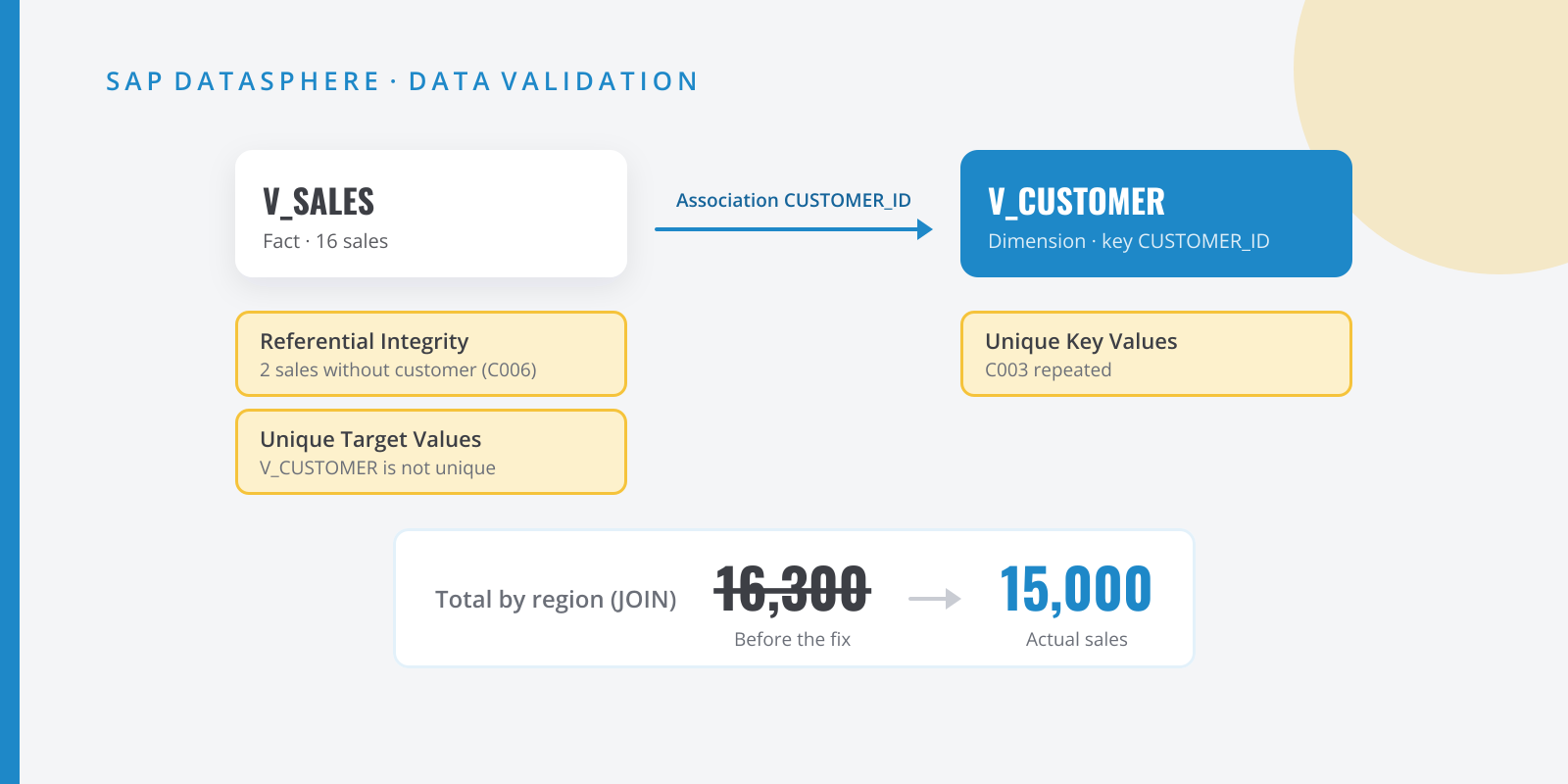
Table of contents
When a total in SAP Analytics Cloud doesn’t match the source system, in my experience the formula is rarely to blame. It’s almost always the model: a dimension with repeated keys that multiplies rows when joined to the facts, or sales whose customer doesn’t exist in the master data. Since 2024 SAP Datasphere has had a tool to catch this before the business does: view data validation (Data Validation). In this hands-on I trigger both classic errors with sample data, show which rule fires for each one, measure how much they inflate the total, and fix them.
What we’ll build
A minimal sales model for a distributor. By the end you will have:
- Two local tables loaded from CSV (
T_CUSTOMER_HISTandT_SALES), aV_CUSTOMERdimension and aV_SALESfact view associated with it. - A validation of both views with three rules failing: Unique Key Values, Referential Integrity and Unique Target Values.
- A control view that shows the impact: the sales total goes from 15,000 to 16,300 because of the dimension.
- The corrected model, validated without errors.
All technical names are examples: use your own naming convention.
The rules we use, as SAP describes them:
| Category | Rule | What it checks |
|---|---|---|
| Keys | Unique Key Values | No combination of key values is repeated |
| Keys | No Null Key Values | No record has a null key |
| Keys | Referential Integrity | Every value in a fact column associated with a dimension exists in that dimension’s key. Only in views with Semantic Usage Fact, and for associations from the fact to dimensions |
| Keys | Unique Target Values | Dimensions, text entities or hierarchies targeted by an association from the view identify each record uniquely in the mapped columns, even if those columns aren’t marked as keys |
There are more categories (hierarchies, data types and text entities), but we don’t need them here.
Step by step
Step:Upload the sample data
Download both files:
- clientes.csv: customer master data with history. Customer
C003moved region on 1 April 2026, so it has two rows:SURuntil 31 March andESTfrom then on. - ventas.csv: 16 fictitious sales from July to September 2026 totalling 15,000. Two of them (1010 and 1016, 1,200 in total) belong to customer
C006, which is not in the master data yet.
Neither “error” is made up: master data that keeps its change history and a new customer who buys before anyone creates them in the master are everyday project reality.
In the Data Builder, open the import menu, choose Import CSV File and create
T_CUSTOMER_HISTfromclientes.csv. Check the types under Details: in my testVALID_FROMcame out as Date, butVALID_TOcame out as String, probably because of9999-12-31. Change it to Date in the Data Type drop-down. Then tick Set as Key onCUSTOMER_IDandVALID_FROM: that is the table’s real key, which is why bothC003rows load without trouble. Deploy. Repeat withventas.csvto createT_SALES, withSALE_IDas key.AMOUNTis detected as Integer because the file has no decimals; for summing whole amounts that’s fine.Set the keys before deploying: in the multilingual texts hands-on we saw that a table with data doesn’t accept primary key changes.
- clientes.csv: customer master data with history. Customer
Step:Create the dimension (with a deliberate mistake)
Create an SQL View
V_CUSTOMER:V_CUSTOMER.sql (faulty version) SELECT "CUSTOMER_ID", "CUSTOMER_NAME", "REGION_ID"FROM "T_CUSTOMER_HIST"Set Semantic Usage = Dimension. Note that
CUSTOMER_IDalready shows up as key: the view inherits the part of the table key it still selects, andVALID_FROMhas been left out. Leave it like that and deploy.This is the typical mistake: whoever models the dimension thinks “one customer, one row” and forgets that the table keeps the history. Datasphere lets you deploy it: in the multilingual texts hands-on we deployed a view with a repeated key without any warning. A view’s key isn’t checked against the data at deployment, and that’s what validation is for.
Step:Create the fact view and its association
Create an SQL View
V_SALES:V_SALES.sql SELECT "SALE_ID", "SALE_DATE", "CUSTOMER_ID", "AMOUNT"FROM "T_SALES"Set Semantic Usage = Fact, mark
SALE_IDas key (attribute ··· menu, Set as Key) and changeAMOUNTto a measure. In the Associations section of the side panel, click + > Association and pickV_CUSTOMER: Datasphere mapsCUSTOMER_IDtoCUSTOMER_IDon its own. Deploy.Step:Validate the dimension
Open
V_CUSTOMER. In the properties panel, click Data Validation Status and then Validate. If the data preview panel is already open, you can also use its Data Validation tab. When it finishes, the Validated On field shows the date and time of the last run.The result is a table with one row per rule: category, rule, validated object and message. All rules are listed, including those that don’t apply to this view, which show N/A. What matters here:
- Unique Key Values: failing, with the message 1 records are invalid. That’s one record for key
C003, even though it is repeated twice. - No Null Key Values and Consistent Data Types: passing.
- Referential Integrity and Unique Target Values: N/A, because the dimension has no associations.
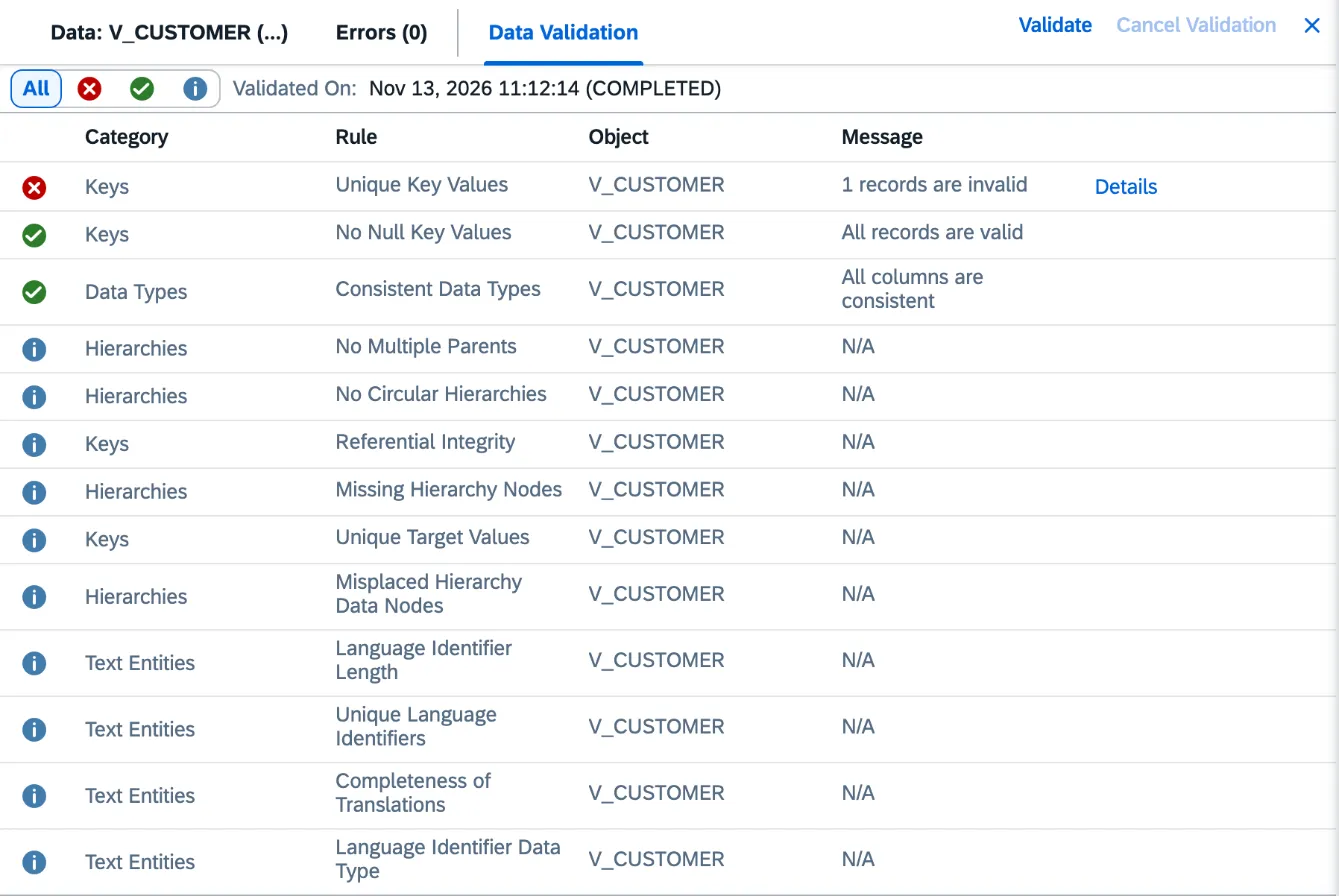
V_CUSTOMER validation: Unique Key Values fails because of C003's repeated key. - Unique Key Values: failing, with the message 1 records are invalid. That’s one record for key
Step:Validate the fact view
Repeat the validation on
V_SALES. Here the interesting rules are the association ones:- Referential Integrity: failing, 2 records are invalid. These are sales 1010 and 1016 for customer
C006. - Unique Target Values: failing, Invalid records (1), because the target dimension doesn’t identify each customer with a single record.
- Unique Key Values, No Null Key Values and Consistent Data Types: passing, because
SALE_IDis neither repeated nor empty.
Watch the Object column: for the two association rules it doesn’t say
V_SALESbutV_CUSTOMER, the association target.Note how useful the second rule is: the dimension’s error also shows up when you validate the fact, which is what the person building the model on top usually checks. You don’t need to validate an associated dimension separately to learn that it repeats values (although it’s worth doing to see the detail).
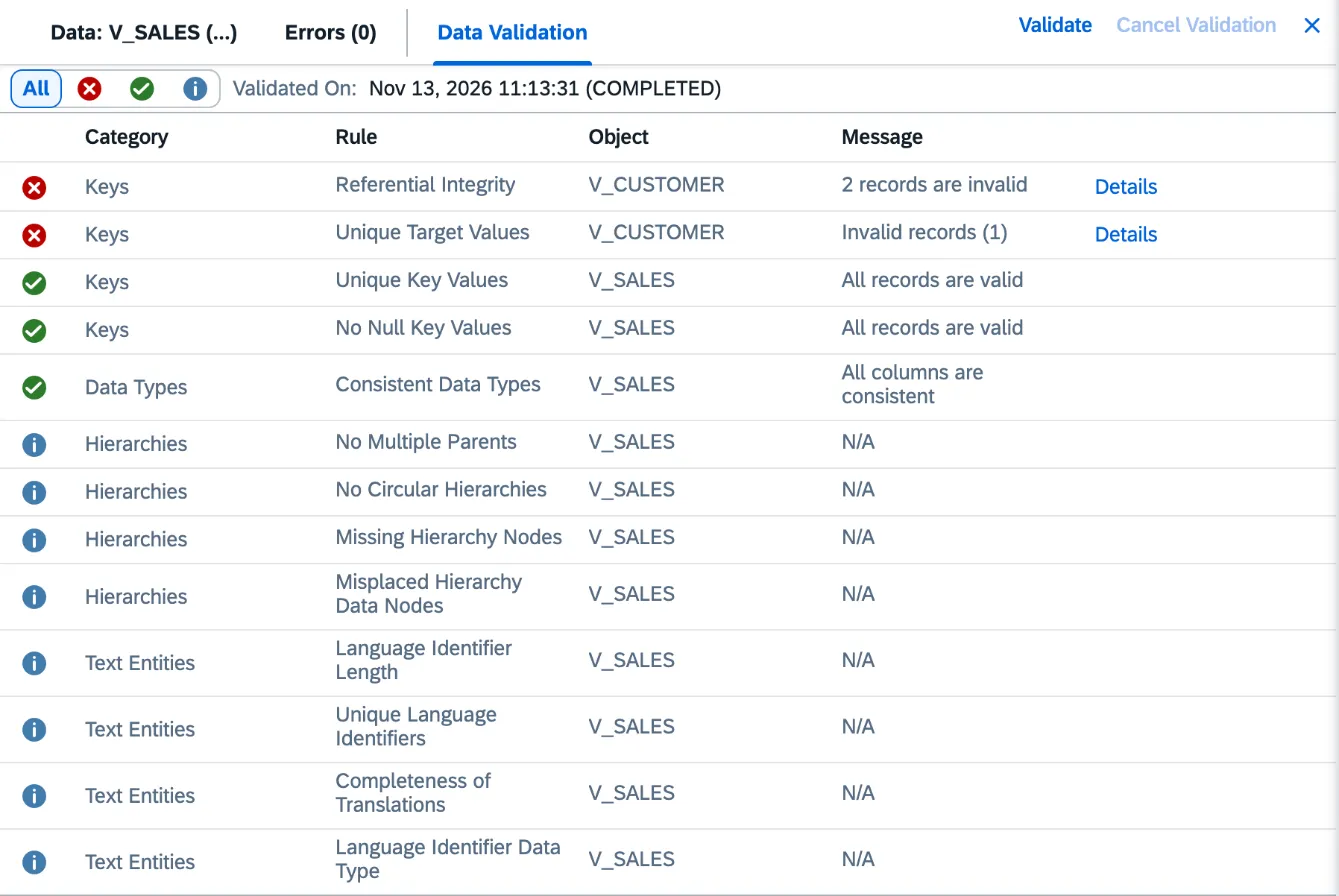
V_SALES validation: both association rules fail and point to V_CUSTOMER. - Referential Integrity: failing, 2 records are invalid. These are sales 1010 and 1016 for customer
Step:Measure the impact on totals
Validation tells you something is wrong; this view tells you what it costs. Create an SQL View
V_CHECK_REGIONthat joins sales to the dimension the way any query would. When I validated the SQL, Datasphere set its Semantic Usage to Fact; change it to Relational Dataset:V_CHECK_REGION.sql SELECT c."REGION_ID",SUM(s."AMOUNT") AS "AMOUNT",COUNT(*) AS "SALES_ROWS"FROM "V_SALES" AS sLEFT JOIN "V_CUSTOMER" AS cON s."CUSTOMER_ID" = c."CUSTOMER_ID"GROUP BY c."REGION_ID"The data preview shows five rows (there’s no total row; I add it up in the table):
REGION_ID AMOUNT SALES_ROWS CEN 3,350 3 EST 6,900 6 NOR 3,550 5 SUR 1,300 3 NULL 1,200 2 Total 16,300 19 We have 16 sales worth 15,000, but the query returns 19 rows worth 16,300. The three
C003sales (1,300) are counted twice, once underSURand once underEST. And the twoC006sales (1,200) have no region. This is plain SQL: aJOINagainst a dimension with repeated keys multiplies rows. In a report, it’s a total that doesn’t reconcile and nobody knows why.
V_CHECK_REGION before the fix: 19 rows worth 16,300 and two sales with no region (NULL). Step:Get the list of failing records
In the
V_SALESvalidation, click Details on the Referential Integrity row. The Detail dialog explains the rule, repeats the number of invalid records and the foreign key column, and offers Copy SQLScript with the code that returns the full list. The dialog itself tells you what to do with it: create an SQL view with the SQLScript (Table Function) language, paste it, save, deploy and preview the data.Create that view, for example
V_DQ_SALES_NO_CUSTOMER. This is the code I copied:V_DQ_SALES_NO_CUSTOMER (SQLScript) RETURNSELECT * FROM "V_SALES"WHERE NOT EXISTS (SELECT 1 FROM "V_CUSTOMER"WHERE "V_SALES"."CUSTOMER_ID" = "V_CUSTOMER"."CUSTOMER_ID");When you validate it, Datasphere replaces
*with theV_SALEScolumns. Deploy and open the preview: you get sales 1010 and 1016, fromC006, worth 500 and 700. The other failing rules have their own Details button too.These views are what I hand over to the master data team: not “there’s a data quality issue”, but “these two sales have a customer that doesn’t exist in the master data”.
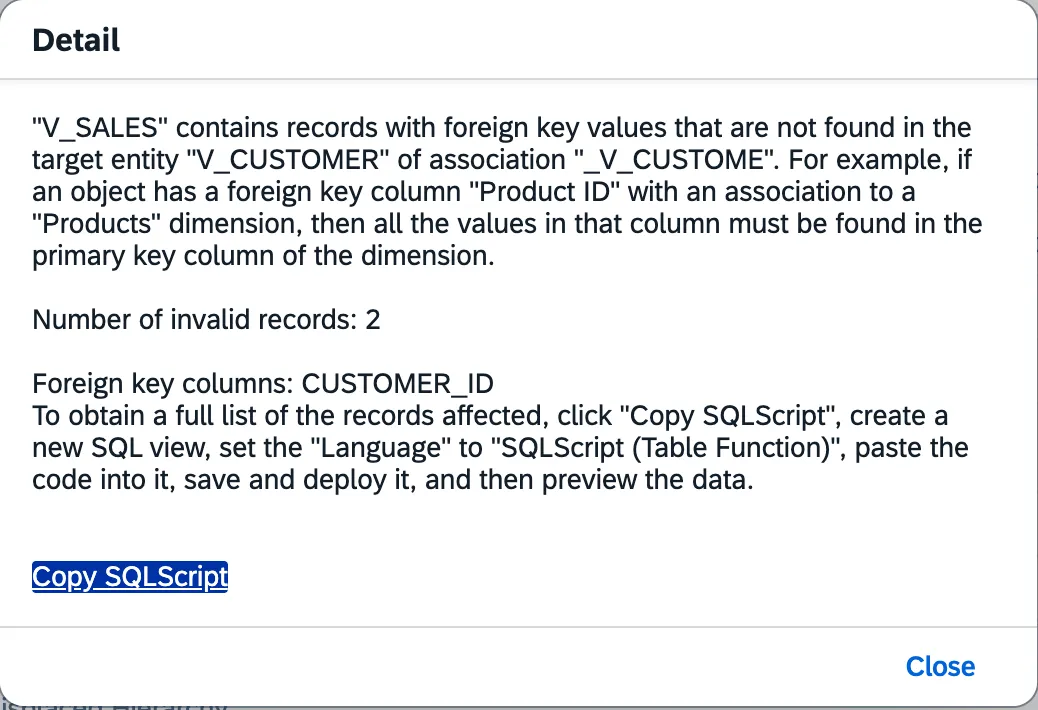
Referential Integrity Detail: record count, key column and Copy SQLScript. Step:Fix the dimension and the master data
The dimension.
V_CUSTOMERmust return one row per customer. For reporting by current region, filter the current record:V_CUSTOMER.sql (fixed) SELECT "CUSTOMER_ID", "CUSTOMER_NAME", "REGION_ID"FROM "T_CUSTOMER_HIST"WHERE "VALID_TO" = '9999-12-31'Deploy. Bear in mind this is a business decision, not a technical one: with this filter,
C003’s July sales are attributed toESTeven though the customer was inSURat the time. If the business wants the historical region, the alternative is a time-dependent dimension, for which SAP requires the validity start date in the key. That’s another hands-on.The master data. For
C006, the right fix is to create it in the source system. Here we simulate it: openT_CUSTOMER_HIST, click Upload Data from CSV File and load cliente_nuevo.csv, one row withC006in regionCEN. Leave Delete Existing Data Before Upload unchecked: the row is then added to the six you already have. I checked it in the table’s Data Viewer: there are seven.Step:Validate again
Click Validate again on
V_CUSTOMERandV_SALES. All rules in the Keys category now show All records are valid.Open the
V_CHECK_REGIONpreview again:REGION_ID AMOUNT SALES_ROWS CEN 4,550 5 EST 6,900 6 NOR 3,550 5 Total 15,000 16 Now you have 16 rows worth 15,000, the same as the sales table, and no sales without a region.
Validation
Summary of what each check should return with the sample data:
| Check | Before the fix | After the fix |
|---|---|---|
V_CUSTOMER · Unique Key Values |
Error (C003) |
No issues |
V_SALES · Referential Integrity |
Error: 2 records (1010, 1016) | No issues |
V_SALES · Unique Target Values |
Error (V_CUSTOMER) |
No issues |
V_CHECK_REGION · total AMOUNT / rows |
16,300 / 19 | 15,000 / 16 |
V_CHECK_REGION · empty region |
1,200 (2 sales) | Not present |
Note how SAP counts: Unique Key Values says 1 records are invalid for a key repeated twice, and Unique Target Values says Invalid records (1). They count problem keys, not rows. Copy SQLScript gives you the detail.
Common errors
| Symptom | Cause | Fix |
|---|---|---|
| A report total is higher than in the source | The dimension repeats keys and the JOIN multiplies fact rows |
Validate the fact: Unique Target Values points to the guilty dimension |
| Amounts appear without a dimension value (empty/unassigned) | Fact values that don’t exist in the dimension | Referential Integrity + Copy SQLScript to get the list and fix the master data |
| The Referential Integrity rule doesn’t appear | The view isn’t a Fact, or the association doesn’t go from the fact to a dimension | Set Semantic Usage = Fact and create the association from the fact |
| Some rules are missing from the result | The view or its sources have a data access control or input parameters, or sources aren’t replicated in Datasphere | Validate an intermediate view without DAC or parameters, or replicate the source |
| Validation takes too long | It depends on the number of records and the complexity of the calculations | Cancel Validation in the panel toolbar; validate a lower layer or a data subset |
| You can’t change the local table’s key | The table already contains data | Create the empty table with its key and load it with Upload Data from CSV File |
Wrap-up
Data validation doesn’t replace a data quality process, but it costs one click and catches the errors that cause the most meeting hours. My recommendation: always validate the fact view you build an analytic model on before showing it to the business and before every transport. Thanks to Unique Target Values, that validation also warns you if an associated dimension repeats values. And when a rule fails, don’t stop at the counter: turn the Copy SQLScript into a control view and hand it to whoever can fix the source.
The natural next step is to do the same for hierarchies: there are specific rules for nodes with multiple parents, circular hierarchies, nodes missing from a hierarchy with directory and, since January 2026, misplaced data nodes.
Sources
- What’s New in SAP Datasphere (SAP Help Portal)
- Validating View Data (SAP Help Portal)
- Set Key Columns to Uniquely Identify Records (SAP Help Portal)
- Creating a Local Table from a CSV File (SAP Help Portal)
- Load or Delete Local Table Data (SAP Help Portal)
- Create an Association to Define a Semantic Relationship Between Entities (SAP Help Portal)