Hands-on: apply dimension data access controls to facts in Datasphere
Step by step: make the row-level security of a dimension filter fact data too in SAP Datasphere, with sample data and a View as User test.
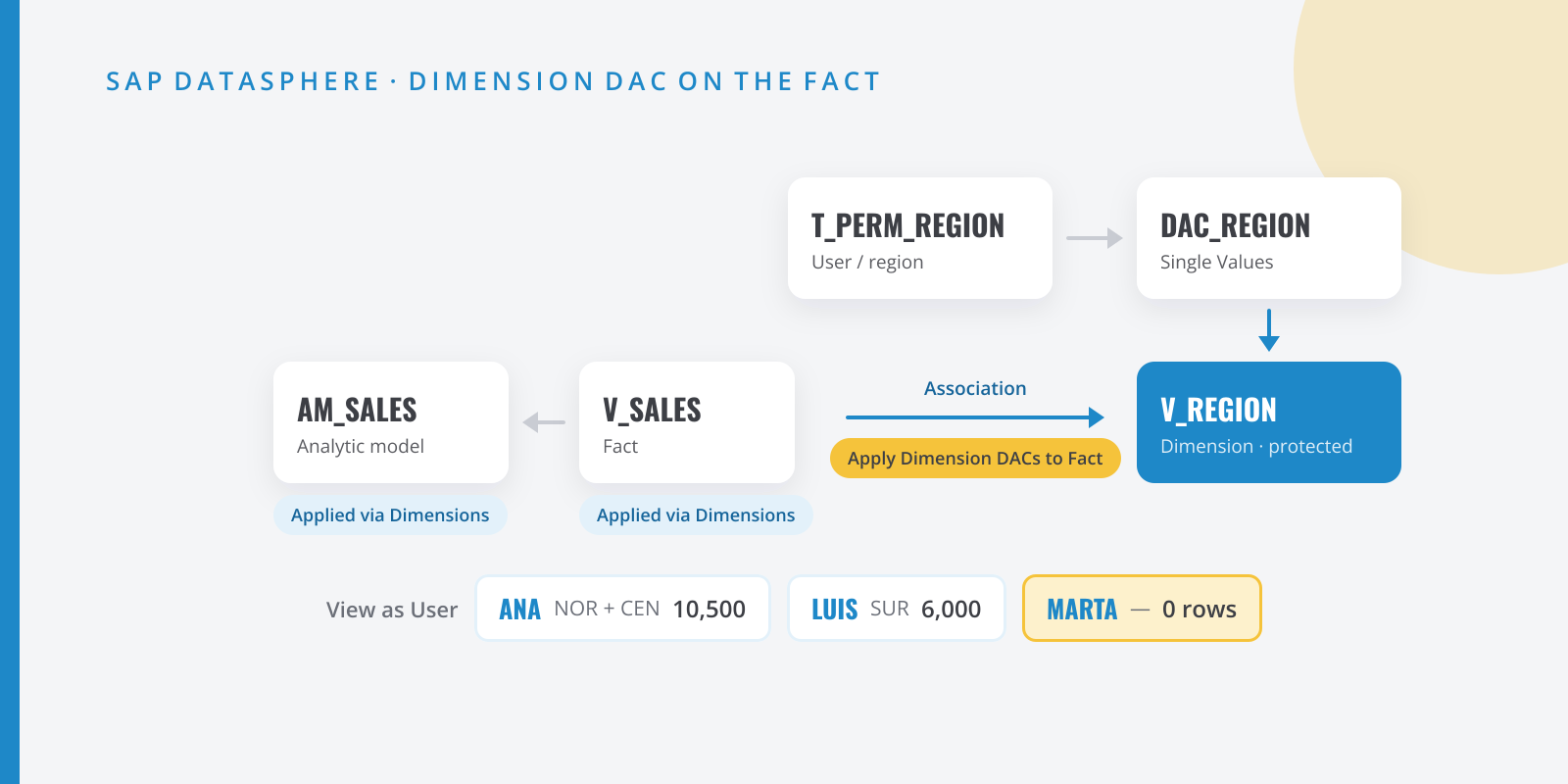
Table of contents
Row-level security in SAP Datasphere is built with data access controls (DACs). The natural place to put it is the dimension: “Ana only sees the North and Central regions”. The catch is that protecting the dimension was not enough to properly protect the facts linked to it through an association. In wave 2026.6 (March 2026) SAP added an option to the fact-to-dimension association, Apply Dimension Data Access Controls to Fact, which applies the dimension’s DAC directly to the fact data. In this hands-on guide I build it from scratch and test it user by user, without needing any extra real users.
What we are going to build
A sales-by-region model, typical of a distribution company with regional branches. By the end you will have:
- A permissions table
T_PERM_REGION(user → region) and a Single Values DACDAC_REGIONon top of it. - A dimension
V_REGIONprotected byDAC_REGION. - A fact view
V_SALESwith an association toV_REGIONthat passes the DAC on to the fact. - An analytic model
AM_SALES, a View as User test on the fact view for three fictitious users, and a test on the model with your own user.
All technical names are examples: use your own naming convention.
Why it matters
SAP sums it up in one sentence: without this option, users may see null aggregate values for records they are not allowed to see. My test shows it clearly: the DAC filters the dimension, but the fact does not inherit it. In the fact view the user still sees every sale, and in the analytic model they see the amounts of forbidden regions with the region name as (Null). The alternative without this option is to apply the DAC to the fact view or the analytic model as well, and maintain the mapping in two places. With the new option, the rule lives in the dimension and the fact inherits it.
Step by step
Step:Upload the sample data
Download the three CSV files, all with fictitious data: regiones.csv, ventas.csv and permisos_region.csv. The file names are in Spanish; the columns are in English.
regiones.csvhas four regions (NOR,CEN,SUR,EST: North, Central, South, East).ventas.csvhas 16 sales, four per region, adding up to 22,450:Region Sales Amount NOR 4 4,450 CEN 4 6,050 SUR 4 6,000 EST 4 5,950 The permissions table assigns regions to users:
permisos_region.csv USER_ID,REGION_IDTU_USUARIO,NORTU_USUARIO,CENTU_USUARIO,SURTU_USUARIO,ESTANA.DEMO,NORANA.DEMO,CENLUIS.DEMO,SURBefore uploading it, replace
TU_USUARIOwith your own SAP Datasphere user ID, in the format required by the tenant’s identity provider. This matters: a user who is not in the permissions table sees no records at all in protected views, and that includes you.ANA.DEMOandLUIS.DEMOare fictitious; they do not need to exist in the tenant.Which format? Don’t guess: the DAC editor (step 2) shows an example built from your own user right below Permissions Entity. In my trial tenant it was the email address in lower case, not the
USR…code you see in the space name. My first upload used the code and I had to redo it.In the Data Builder, open the import menu in the toolbar and choose Import CSV File to create
T_REGION,T_SALESandT_PERM_REGION. In the import editor, select each column and open Details to check its type. In my test Datasphere correctly detectedAMOUNTas Number andSALE_DATEas Date. Deploy each table with its technical name.If you already uploaded
T_PERM_REGIONwith the wrong ID, you don’t need to delete it: in the table editor, the Upload Data from CSV File button opens the Import CSV File dialog; select Delete Existing Data Before Upload and upload the corrected file.Step:Create the DAC on the permissions table
In the Data Builder, choose New Data Access Control and fill in:
Property Value Business / Technical Name DAC_REGIONStructure Single Values Permissions Entity T_PERM_REGIONIdentifier Column USER_IDCriteria REGION_IDIn the Criteria section, Create adds a row; in my case it proposed
REGION_IDstraight away, the only column left. Save and deploy. With Single Values, each user sees the records matching any of the values assigned to them: for Ana, North or Central.If your permissions table is shared from another space, you cannot use it directly as the permissions entity: wrap it in a view in your own space first.
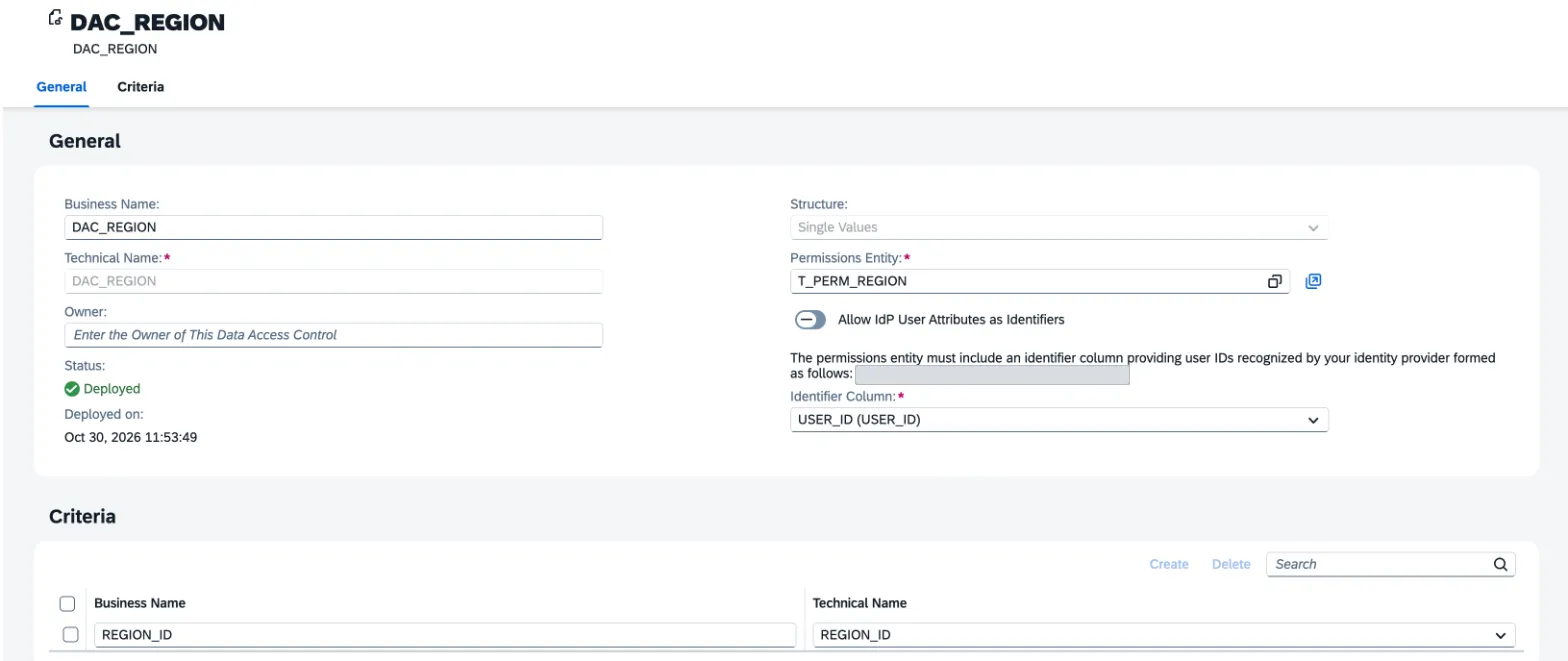
DAC_REGION deployed. Below Permissions Entity, the editor tells you which ID format it expects (I have hidden my email). Step:Create and protect the dimension
Create an SQL View
V_REGION:V_REGION.sql SELECT "REGION_ID", "REGION_NAME"FROM "T_REGION"Set Semantic Usage = Dimension, validate the SQL so the attributes show up, and make
REGION_IDthe key (pencil icon on Attributes, key column). If you like, makeREGION_NAMEthe text ofREGION_ID.In the view’s side panel, scroll down to the Data Access Controls list. Click +, choose
DAC_REGIONand, in the Join section, drag the view’sREGION_IDonto the DAC’sREGION_IDcriterion: in my test it was not mapped automatically, even though the columns have the same name. Every criterion of the DAC must be mapped, otherwise the filter will not work correctly. Deploy.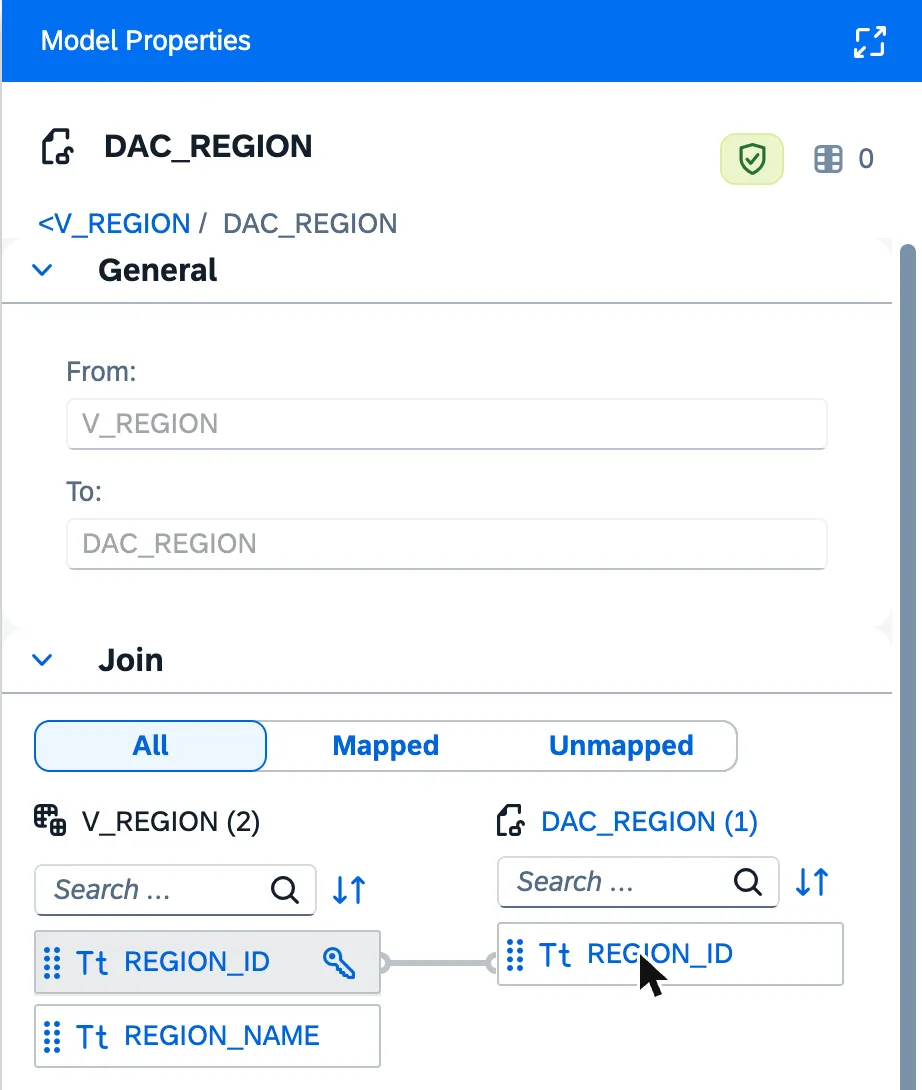
DAC_REGION join on V_REGION: the view's REGION_ID linked to the DAC criterion. Check it right away in the
V_REGIONData Viewer with View as User (the person icon in the data panel toolbar): withANA.DEMOonlyCENandNORare returned. The dimension is now protected.Step:Create the fact with the association (without the option yet)
Create an SQL View
V_SALES:V_SALES.sql SELECT "SALE_ID", "SALE_DATE", "REGION_ID", "AMOUNT"FROM "T_SALES"Set Semantic Usage = Fact,
SALE_IDas the key andAMOUNTas a measure (drag it to Measures). In the Associations section, click + > Association and chooseV_REGION. Datasphere mapped the fact’sREGION_IDto the dimension’sREGION_IDkey on its own.In the association panel, below To, you can already see the Apply Dimension Data Access Controls to Fact checkbox. For now, do not select it: I want you to see the old behaviour first. Deploy.
Then create the analytic model
AM_SALESby draggingV_SALESonto the canvas. The add dialog already proposes the associated dimensionREGION_ID(V_REGION) and theAMOUNTmeasure. Deploy it.Step:Check the 'before' with View as User
In the
V_SALESeditor, open the Data Viewer, click View as User, enterANA.DEMOand click View.Result in my test: Ana sees all 16 sales, including
SURandEST, and the total is still 22,450. The dimension filters her, but the fact view does not.One detail: View as User only simulates DACs that are deployed and applied in the current space. It is not available for a view shared from another space.
On
AM_SALES, which is where SAP talks about null aggregate values, View as User doesn’t help. The help says it exists in the analytic model editor; in my tenant (October 2026) it only appears when you select the fact source or the dimension on the canvas, and then the Data Viewer shows that view’s data (V_SALESorV_REGION), just as if you opened it in its own editor. With the model selected, neither the Data Viewer nor Preview offers it.The trick is to test with your own user. Temporarily remove
SURandESTfrom your user inT_PERM_REGION(upload the CSV again without those two rows, with Delete Existing Data Before Upload). OpenAM_SALESin Preview and putREGION_IDand itsREGION_NAMEattribute in the rows (expandREGION_IDunder Available Objects).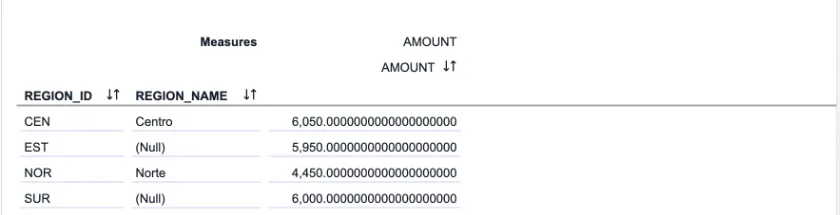
AM_SALES without the option and with my user limited to NOR and CEN: EST and SUR show REGION_NAME (Null), but with their amounts. This is exactly what SAP describes: the DAC hides the dimension records, so
REGION_NAMEshows as (Null) forESTandSUR, but the fact amounts are still there and the total is 22,450. The user doesn’t know which region they belong to, but can see how much the regions they shouldn’t see are selling.Step:Pass the DAC on to the fact
Go back to
V_SALES, open the association toV_REGIONand select Apply Dimension Data Access Controls to Fact. Deploy the view.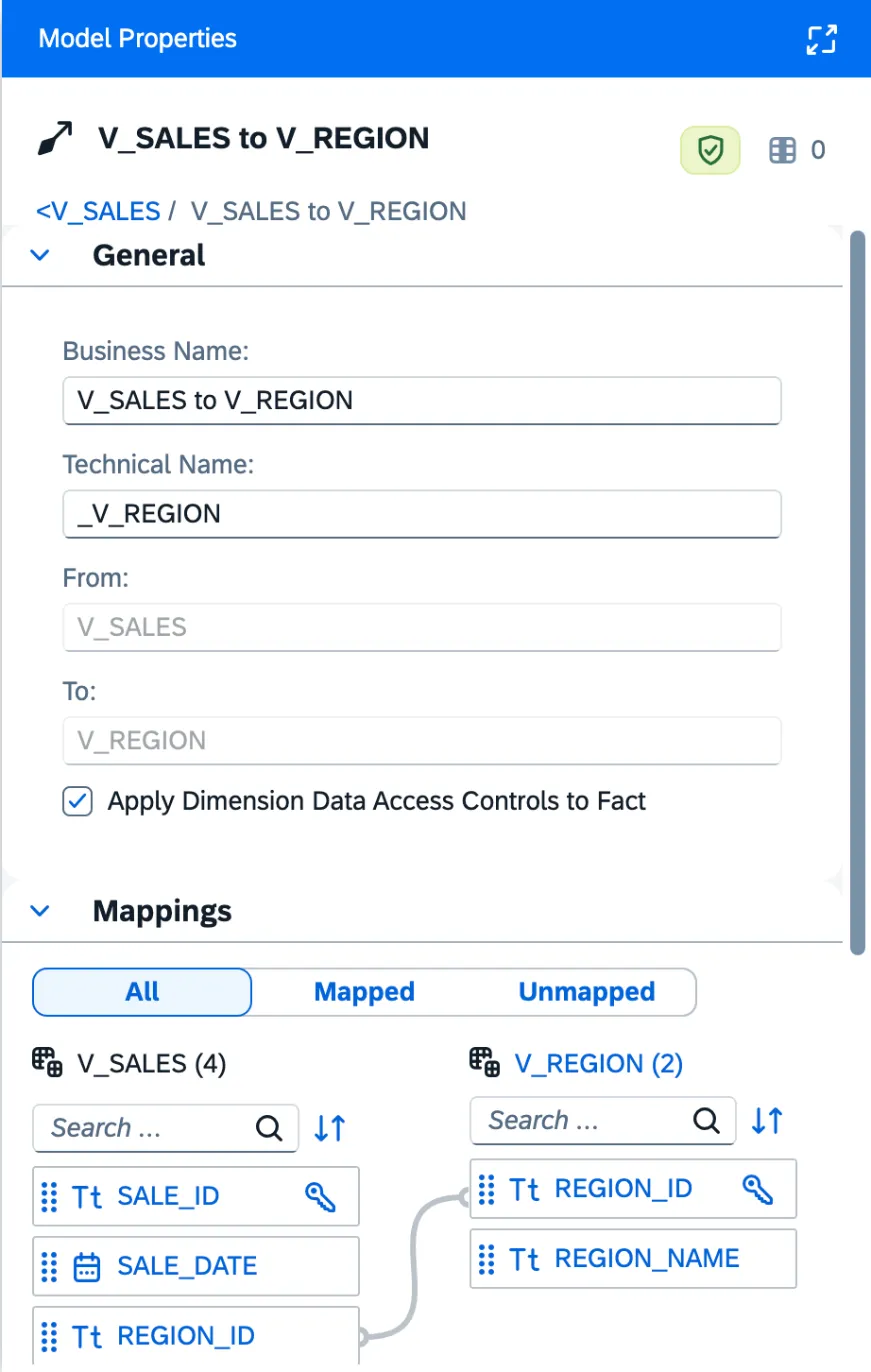
The V_SALES to V_REGION association with the checkbox selected and the REGION_ID → REGION_ID mapping. In the
V_SALESside panel, the Data Access Controls list still has 0 DACs of its own, but it now showsDAC_REGIONin the Applied via Dimensions sub-list, with the note Applied to V_REGION. That sub-list is handy when reviewing inherited models: it tells you which security arrives through associations without opening every dimension.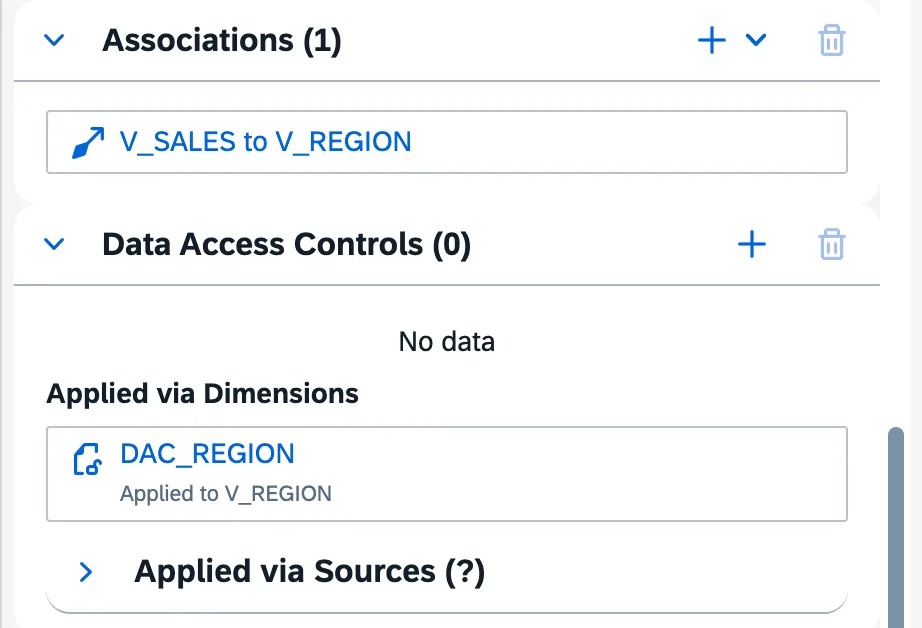
V_SALES has no DACs of its own, but inherits DAC_REGION through the association. Don’t expect to see the change in
AM_SALES. Its panel has no Applied via Dimensions sub-list, andDAC_REGIONshows up under Applied via Sources withV_REGIONas the source whether the checkbox is selected or not: I checked by clearing it and redeploying. It is listed there becauseV_REGIONis one of the model’s sources, not because of the new option. The analytic model stayed Deployed after I changed the fact view; it did not ask to be redeployed.Where you do see the change is in the data. Run the
AM_SALESPreview again with your user still limited toNORandCEN: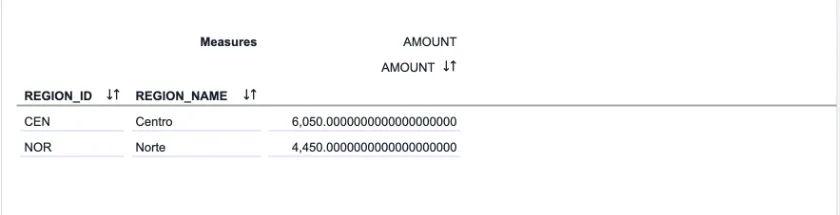
With the checkbox selected, the same user only sees CEN and NOR (10,500). The (Null) rows are gone. Now the fact inherits the DAC: only
CENandNORshow up and the total drops to 10,500. When you are done, upload the CSV again with your four regions. You don’t need to redeploy anything: the model picks up changes to the permissions table when you reload the browser page. I repeated it twice more and a plain F5 was enough. Once, though, the Preview kept showing the previous result for a few minutes whileV_SALESalready showed the new one; if that happens, wait a bit and reload.
Validation
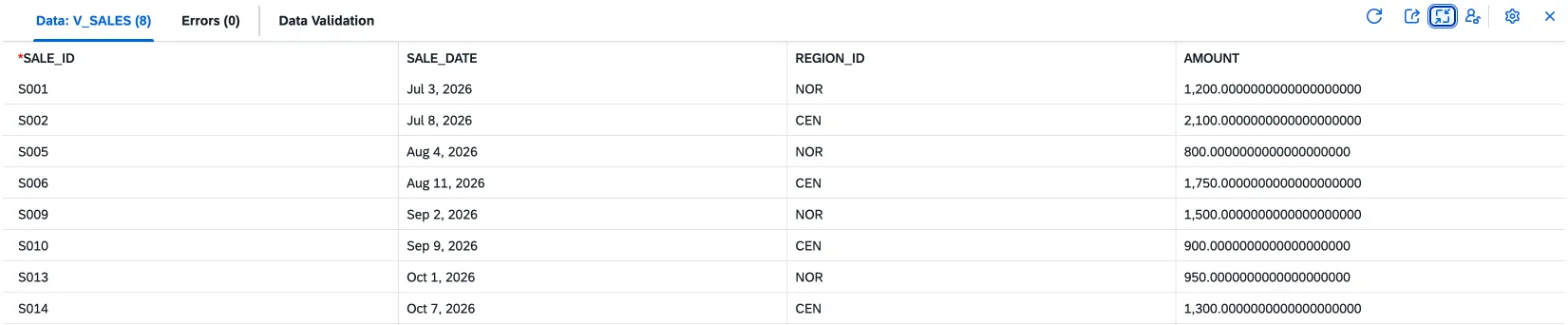
Repeat View as User on V_SALES for each user. If the Data Viewer shows the error You can’t see data in a view protected by a data access control until all changes are deployed right after deploying, close the view and reopen it from the Data Builder: that cleared it for me. This is what I got with the CSV data:
| User | Allowed regions | Visible sales | AMOUNT total |
|---|---|---|---|
ANA.DEMO |
NOR, CEN | 8 | 10,500 |
LUIS.DEMO |
SUR | 4 | 6,000 |
MARTA.DEMO (not in the table) |
— | 0 | — |
| Your user | All four | 16 | 22,450 |
In AM_SALES, with my user limited to NOR and CEN, the Preview went from 22,450 with two (Null) rows to 10,500 once the checkbox was selected, just like ANA.DEMO on the fact view.
MARTA.DEMO is my favourite test: it confirms that anyone missing from the permissions table sees nothing. That is the correct, safe behaviour, but in real projects it creates “I can’t see any data” tickets on day one. If your team loads permissions from an HR file or an identity system, check first that every active user has at least one row.
Common mistakes
| Symptom | Cause | Fix |
|---|---|---|
| A user sees no data | They have no row in the permissions table | Add them, even with a single region. Watch out for your own user. |
| You see no data even though you are in the permissions table | The ID is not in the identity provider’s format | Use the format shown in the DAC editor (in the trial, the lower-case email) and reload the table. |
| The Data Viewer asks you to deploy although the view is deployed | The editor has not refreshed its status after deployment | Close the view and reopen it from the Data Builder. |
| You change the permissions table and the model Preview doesn’t change | The Preview still shows the previous result | Reload the browser page; if it does not change, wait a few minutes and reload again. No redeploy needed. |
| View as User does not filter anything | The DAC is not deployed, or it was applied in another space | Deploy the DAC and the view. View as User only simulates deployed DACs in the current space. |
| You cannot use the permissions table in the DAC | The table is shared from another space | Create a view on it in your space and use that as the permissions entity. |
| Data validation shows rules as unavailable | The view, or one of its sources, is protected by a DAC | This is a documented limitation: validate keys before applying the DAC, or on an unprotected view. |
You cannot persist a view that consumes V_SALES |
A view consuming another view with a DAC cannot be persisted | Persist below the protected view, or apply the DAC to the top view instead. |
| In the analytic model you cannot map a DAC to a dimension attribute | The model has standard, reference date or X variables | This is a documented limitation. Applying security in the views, as in this guide, is the alternative I would use. |
A note on persistence: the documentation says a view with a DAC can be persisted, but I have not found what exactly happens with a DAC inherited through an association. If you persist the fact view, test it before relying on it.
My recommendation
For new models, I would put the DAC on the dimension and select the option on every fact-to-dimension association that needs to inherit it. One rule in one place is easier to audit than three copies mapped by hand. For existing models, start with the Applied via Dimensions sub-list of each fact view: it tells you which facts already inherit their dimensions’ security. In the analytic model, Applied via Sources tells you which DACs exist in its sources, but not whether the fact inherits them. And before going live, always run the three-user test: one with everything, one with part of the data and one with nothing.
Sources
- What’s New in SAP Datasphere (SAP Help Portal)
- Create an Association to Define a Semantic Relationship Between Entities (SAP Help Portal)
- Apply a Data Access Control to a Graphical or SQL View (SAP Help Portal)
- Apply a Data Access Control to an Analytic Model (SAP Help Portal)
- Securing Data with Data Access Controls (SAP Help Portal)
- Create a “Single Values” Data Access Control (SAP Help Portal)
- Viewing Object Data (SAP Help Portal)
- Persisted Views and Data Access Control (SAP Help Portal)
- Validating View Data (SAP Help Portal)
- Creating a Local Table from a CSV File (SAP Help Portal)